

Ravetree is an agency management system that brings together most key workflows in one place, including native project management, resource planning, time tracking, client management, billing and invoicing, and expense tracking.
Users praise Ravetree for its clean interface, easy navigation, and powerful financial tools.
However, its toolkit may not cut it for all agencies, especially ones that require:
-
Deeper financial and accounting controls. Ravetree lacks a native accounting system, so teams still need to pay for (and integrate with) a standalone solution like QuickBooks to manage workflows like accounts payable. This gap also limits Ravetree’s financial reporting and increases the risk of errors and duplicate data, as users constantly push data back and forth between the two systems.
-
Advanced reporting capabilities. Ravetree’s reporting tools are primarily limited to the project management module; it doesn’t include robust financial management, sales tools, or agency‑wide reporting. Consequently, teams lack deeper insights into their performance and opportunities to improve their bottom line.
-
A robust system that supports complex workflows. Several reviewers highlight reliability and performance issues with Ravetree — files not uploading properly, unexpected data duplication, and occasional crashes when performing even basic actions. While Ravetree appears to update its software regularly to address bugs and glitches, users are frustrated by disruptions to their workflows.
We’ve put together this guide to help you compare the most popular Ravetree alternatives and find your best solution. We cover our all-in-one system, Workamajig, and review 9 other software, discussing the pros, cons, features, and pricing of each, so you can get the full lay of the land.
For a more personalized walkthrough of Workamajig, request a demo with our team.
1. Workamajig
All-in-one agency solution with robust financial management & reporting
Workamajig is a popular Ravetree alternative that offers (far) deeper accounting and financial management tools — as one of the main motivations when building Workamajig was to solve agencies’ (often quiet) profitability problems. Our system includes:
-
A full, GL-ready accounting system. Workamajig fully replaces standalone accounting systems (such as QuickBooks or Xero) and is tailored to creative workflows. Our system is also GDPR-, HMRC-, and GAAP-compliant, and supports multi-currency accounting, facilitating teams with international business.
-
Streamlined expense tracking. Workamajig lets you integrate with media buying systems, add details from vendor invoices, and import credit card charges so you can pull in and account for all expenses with ease — reducing errors and saving time.
-
Vendor management tools. Our system provides tools to manage relationships with contract workers and production vendors, enabling you to track their work, assess their reliability over time, and ensure costs are accurately factored into project budgets.
-
Powerful, personalized dashboards. Our system’s role-based Today Dashboards make it easy for all teams — sales, project, accounting, you name it — to plan their week ahead, prioritize daily tasks, and stay up to date with new developments.
-
Advanced reporting capabilities. Workamajig offers extensive financial, sales, and agency-wide reporting capabilities that offer deep insights into performance, profitability, and productivity.
We’ve proudly served agencies and in-house teams of all sizes for over 30 years. Our solution’s comprehensive toolset brings together all your projects, people, processes, and finances under one roof.
In addition to our accounting software and vendor management tools, our system offers:
-
CRM software — with tools to capture leads, prioritize and develop opportunities, track interactions at key touchpoints, visualize the sales pipeline, measure sales performance, and more.
-
A complete project management suite — with various project intake methods, an automated estimating tool, team collaboration features, real-time project monitoring, and project portfolio management.
-
Resource management — with capacity planning, staff scheduling, and resource utilization reports.
-
Native time tracking — so team members can easily track time at the task level.
-
Client & vendor management tools — to help effectively manage all of your agency’s third-party relationships.
And, just like Ravetree, all our features are included in every plan, so you don’t have to do any mental gymnastics to find out which one to choose. After joining Workamajig, you’ll also be assigned a dedicated accounting manager who will:
- Guide you through the set-up process
- Train you on all of Workamajig’s features
- Provide ongoing support to ensure Workamajig is always configured for your current processes and goals
We’ll walk you through all our features in the following sections, or if you’d like a more in-depth walkthrough, you can request a live demo with our team.
CRM & Client Management Tools
One of the main areas where many Ravetree alternatives fall short is on the CRM front — they either offer really basic features, or lack one entirely.
Fortunately, Workamajig isn’t guilty of either of these charges — our robust system fully replaces Ravetree’s CRM and lets sales teams easily manage leads from lead to close. It features tools for:
- Consolidating leads from different sources
- Tracking interactions and lead nurturing efforts
- Converting (1) leads to opportunities and (2) won opportunities for projects or campaigns
- Tracking opportunity stages and assigning opportunities to reps
Capturing and Managing Leads
The simplest way to automate lead capture is to connect Workamajig to your website’s contact form, ensuring new inquiries are stored in the system as leads.
However, our system also includes tools to pull in leads from various sources and systems — such as MQLs from a marketing campaign or event attendees. Your teams can:
-
Connect Workamajig to other systems via APIs or Zapier. Our platform integrates with all major CRM software, including HubSpot, Zoho, Salesforce, Zendesk, Pipedrive, and more.
-
Import lead lists from .csv files and even add leads manually.
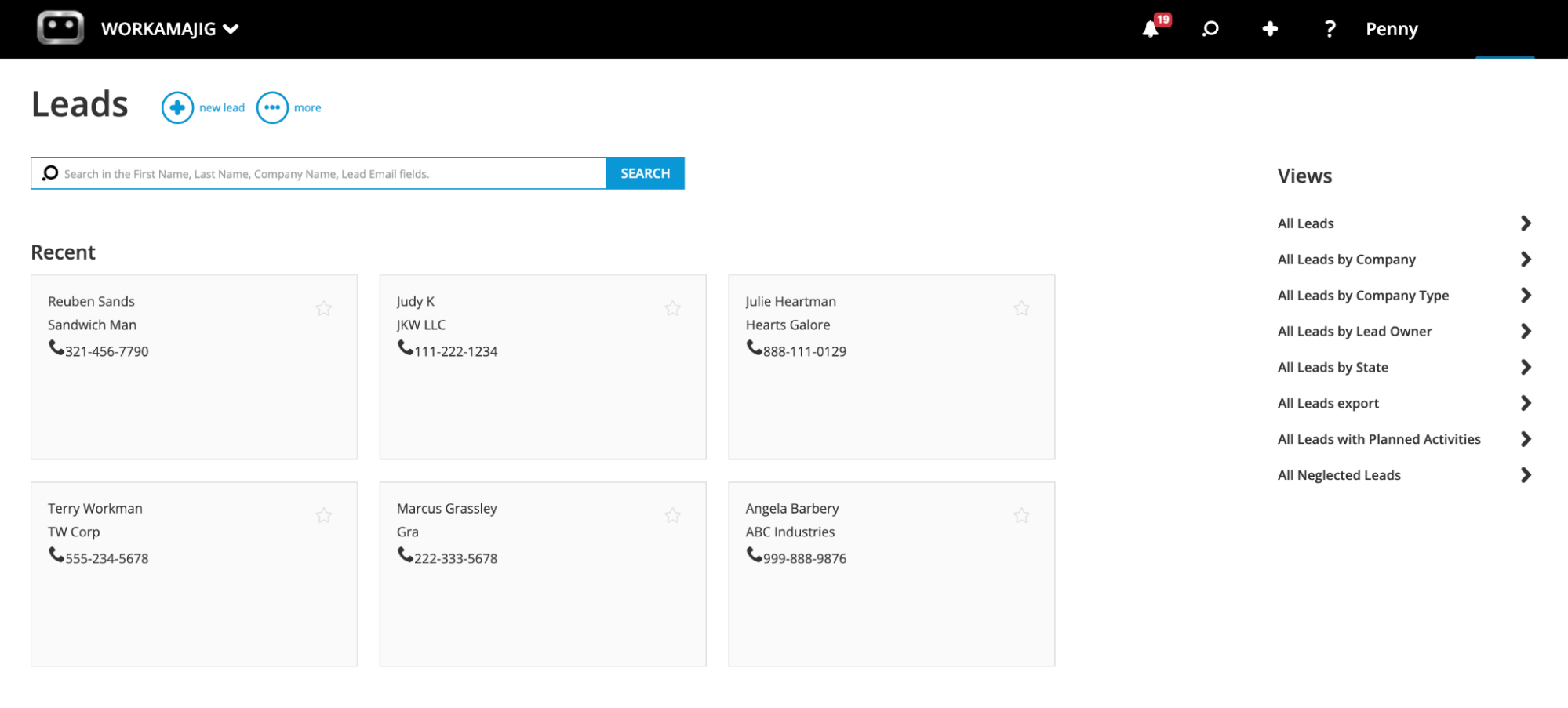
The leads captured across all sources flow into our centralized Leads Dashboard (shown in the screenshot below). From here, sales reps can:
-
Filter leads by different Views
-
Keep track of Neglected leads — i.e., ones that haven’t been engaged in a period that you specify (e.g., 30 days)
-
Engage leads, qualify them, and track all interactions using Conversations
The Conversations feature is a powerful tool for documenting all touchpoints and interactions.
For example, reps can standardize the steps they take to nurture leads — e.g., sending content resources, meeting them at an event, holding a phone call, or sending them an email. Then, they can leave notes on each lead card to track these interactions (Workamajig automatically saves all email conversations).
These Conversations are preserved when leads are converted to opportunities and later into clients — so reps can conveniently reference all previous interactions and touchpoints. After qualifying a lead, reps can convert it into an opportunity and continue developing it from the Opportunities Dashboard.
Developing Opportunities and Tracking Pipeline
Workamajig’s Opportunities Dashboard lets sales teams track deal stages, visualize their pipeline, assign opportunities, develop them, and capture key information to improve sales reporting.
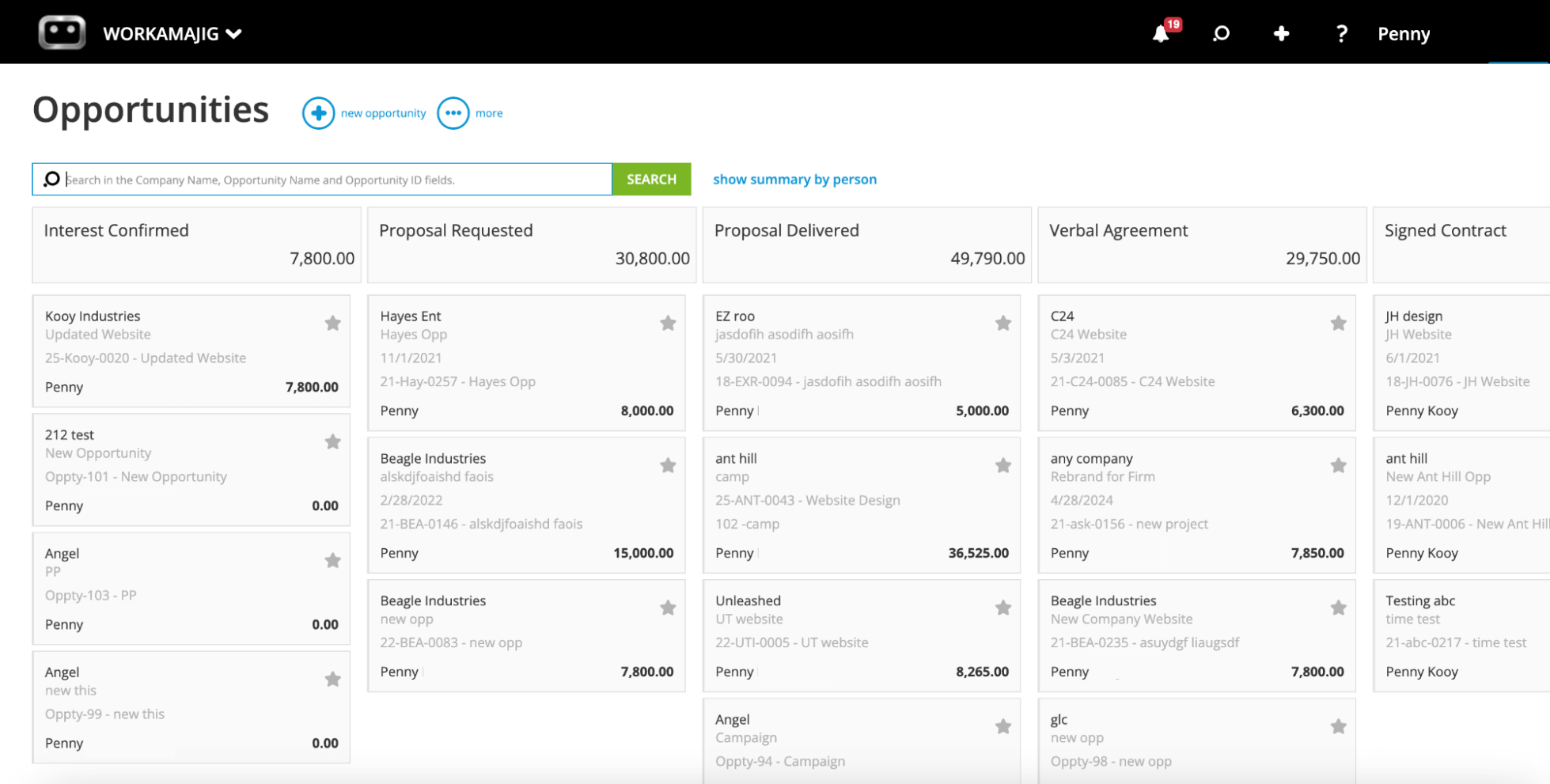
In the screenshot above, you can see the entire sales pipeline laid out in a Kanban-style view, with opportunities organized by deal stage. The stages you see here — such as “Proposal Requested” and “Signed Contract” — can be tailored to your agency’s unique processes and workflows.
From here, sales managers can set appropriate stages and status for each opportunity, add context to opportunity cards for owners to see, and assign opportunities to reps.
Then, sales reps can see all recorded Conversations on Opportunity cards and view big-picture details from the Opportunity overviews — such as age, timeline, and potential profit — so they can prioritize best-fit opportunities.
As they engage opportunities and collect more information, reps can:
-
Add details to Opportunity cards to improve sales reporting. These details include the probability of closure, projected revenue, estimated costs, forecasted close date, the number of months expected to bill off the opportunity, and the outcome (awarded, lost to a competitor, or cancelled).
All this data feeds into revenue forecasts and other reports. For example, the data from outcomes flows into our win/loss reports, so teams can look back and see the different reasons for winning or losing opportunities. -
Refer to project data during negotiations. When sales reps are developing new opportunities, they can reference project data in Workamajig — including resources and budgets — to share accurate estimates and realistic timelines.
Then reps can easily hand over won opportunities to internal project teams by converting them into a new project or campaign — with all the details automatically transferred over.
Next up, we’ll show you:
-
How sales teams can conveniently manage their day-to-day and stay on top of opportunities with our Today - Sales and dedicated Sales Dashboards
-
Workamajig’s various sales reports for evaluating performance and pipeline health
-
Our complete tool kit for managing clients
Today & Sales Dashboards
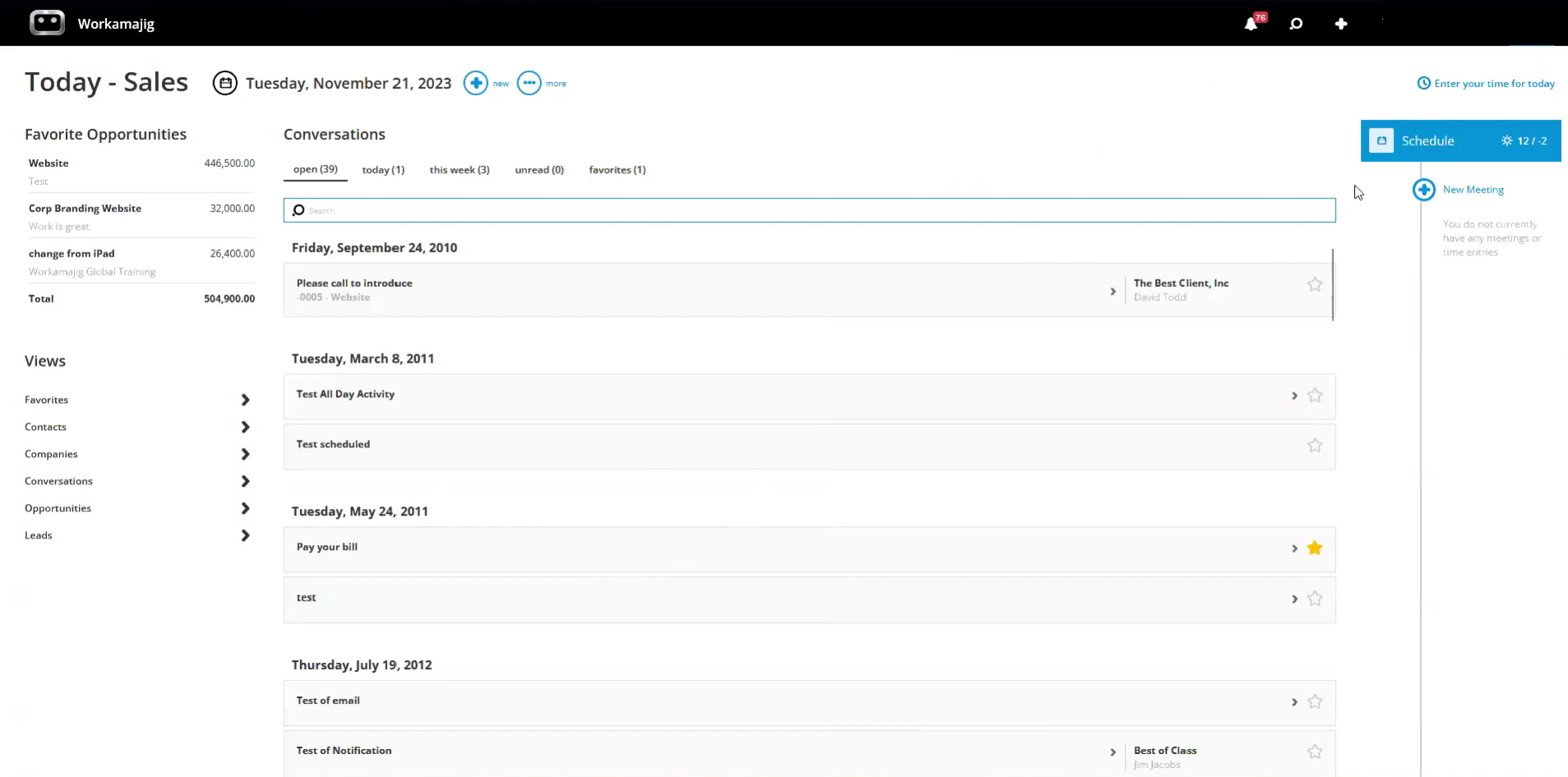
Sales teams regularly use two main dashboards in Workamajig. The first one is their personalized Today - Sales Dashboard, tailored to their tasks and responsibilities. From here, they can:
-
View previous interactions in the Conversations feed to track engagement efforts and plan follow-ups.
-
Track meetings, schedule new ones, and access their full calendars.
-
Track hours against tasks, projects, or service — the hours they spend nurturing leads and engaging opportunities can be factored into the project budgets for closed deals.
-
See all their favorite items, including leads, opportunities, and Conversations.
-
Navigate to the listing screens for contacts, leads, companies, Conversations, and opportunities from the Views section. Each listing screen also includes search filters (e.g., All, Neglected, and Owner) to organize the results.
The other dashboard sales teams love is our dedicated Sales Dashboard, which lets them track sales performance and generate sales reports.
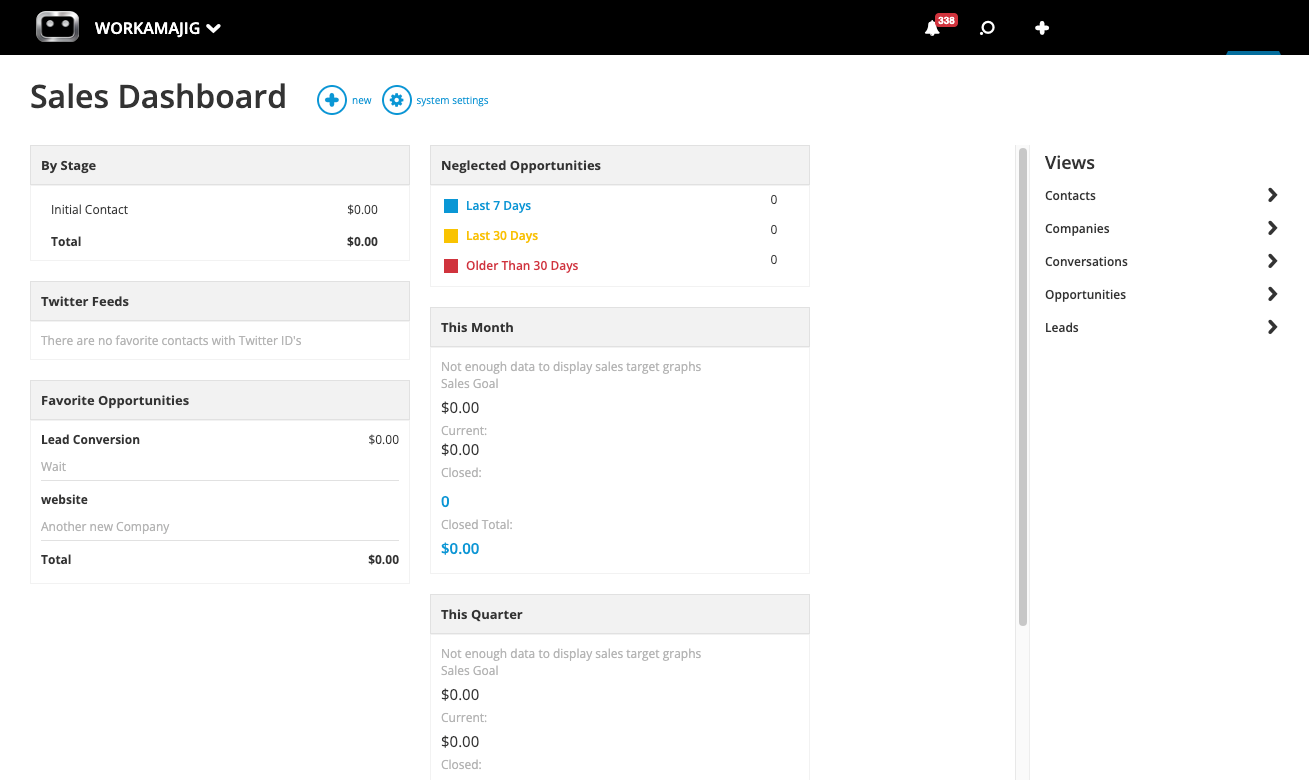
As shown in the screenshot above, the dashboard provides a clean overview of:
-
All active opportunities in the system and their respective deal stages, so teams can keep track of what’s in the pipeline.
-
Neglected opportunities, with a breakdown of when they were last engaged, so reps can prioritize them before they’re lost.
-
Sales performance for the month, quarter, and year, including how much revenue has been closed so far.
-
Any items (opportunities, Conversations, etc.) that the user has saved as Favorites.
From here, users can select any item, such as Favorites or a specific deal stage (e.g., “Signed Contract”), to pull up an overview of the related details and drill down into the specifics.
CRM Reporting Suite
Workamajig’s robust CRM reporting suite enables sales teams to analyze past performance, identify what they’re doing well, and drive more revenue. With our various out-of-the-box and custom reports, they can:
-
Learn more about the types of leads they bring in
-
Identify commonalities between won and lost opportunities to understand where they’re successful and where they need to improve
-
Monitor deals as they move through various sales stages
-
See where leads drop off and dig into what happened
Some of our most popular sales reports include:
-
Win/Loss Analysis
-
Quarterly Performance Comparisons
-
Sales Rep Activity Summaries
Plus, teams can create custom reports using our intuitive drag-and-drop report builder with CRM datasets (e.g., Company, Contact, Opportunity, and Activity).
Meanwhile, sales managers can keep track of their team's activities and what’s moving in the pipeline with various tools. They can view:
- Number of clients and prospects in each sales funnel stage
- Current opportunities and their projected revenue
- Team activity metrics, follow-up schedules, and response time analytics
- Resource needs (based on pipeline data)
- Comparison reports showing performance against previous periods and annual targets
Managing Clients in Workamajig
Workamajig’s client management tools make it easy to continue managing relationships after closing deals.
You can set up dedicated portals for each client (we don’t impose any limits), so they can access project information, track progress, participate in project conversations, share feedback, download files, and request work — all in one place.
When a client’s attention is needed on a project — maybe they’ve been tagged in a discussion or a deliverable is ready for them to review — our system sends them an automated email alert. This saves clients from having to monitor the project portal for updates continuously — they know exactly when to jump in and, more crucially, where their input is needed.
Read more: Best Agency CRM Software: Reviews & How to Choose
Workamajig Project Management System
Project Intake & Kickoff
Workamajig offers various tools to standardize project intake and support your team’s workflows and streamline creative project planning:
-
Convert earned opportunities to new projects. As mentioned above, reps can convert won opportunities into new projects or campaigns and automatically transfer all relevant details from sales conversations — ensuring nothing is lost and saving project teams from having to chase up Sales for details.
-
Create templates for repeat projects. These templates can be customized for recurring project types — such as quarterly campaigns or similar services, like rebranding projects or website design — with predefined workflows, tasks, subtasks, dependencies, resource allocations, budgets, and timelines.
-
Project request forms. Use these to manage requests from repeat clients or internal departments.
As these intake methods organize all incoming project details, PMs immediately have access to everything they need to kick things off. They can:
-
Double-check project details and make any tweaks with our task management tools — e.g., adjusting time allocations or setting additional milestones.
-
Build accurate project estimates — as PMs develop their plans, our automated estimating tool calculates projected budgets by factoring in all expected costs, including labor, overhead, vendor costs, contingencies, and services, using historical and current data stored in our system.
Workamajig also flags potential profitability concerns at this stage, before resources are committed, so managers can adjust their plans and start strong.
When they’re confident in the initial plans and estimates, managers can start assigning tasks to internal staff and/or contractors using Workamajig’s resource management tools (which we discuss in depth later).
Project Monitoring & Budget Tracking
Every project in Workamajig is displayed on the central monitoring dashboard, which tracks real-time progress, timelines, and cost burn. Our dashboard supports a variety of project management methodologies (Waterfall, Agile, Hybrid, Scrum, Critical Path Method & more) so you can tailor it to your needs.
Our system also lets project managers customize these dashboards by color-coding projects and their phases, so they can visually track each project’s progress and catch issues. As you’ll see in the GIF below, projects are broken down into colored blocks, with black progress bars showing exactly where they stand.
Our system also provides project health breakdowns (on the left-hand side of our Gantt charts) with color-coded icons that highlight project status. Here, you’ll notice:
-
Green icons mean the project’s progressing smoothly.
-
Yellow icons signal that the project is moving more slowly than anticipated or that costs are higher than expected. For example, the Sa website project below shows the Project Timeline and % Complete highlighted in yellow, indicating that this project is at risk of running behind schedule.
-
Red icons indicate that the project is delayed or has exceeded its budget. You’ll also see below that the SF website project shows red highlights in the Project Timeline and % Complete columns, meaning it’s already run over its deadline.
![Workamajig dashboard: Projects and Project Status [GIF]](https://www.workamajig.com/hs-fs/hubfs/Workamajig%20-%20Projects%20and%20Project%20Status%20%5BGIF%5D.gif?width=1714&height=853&name=Workamajig%20-%20Projects%20and%20Project%20Status%20%5BGIF%5D.gif)
Our system also sends proactive risk alerts when projects enter the yellow territory so PMs can quickly intervene and correct course. Say the project is:
-
At risk of delays: Managers might temporarily bring additional resources onto the project.
-
Projected to exceed its budget: PMs may reduce the budgeted hours for some tasks or shift schedules (e.g., by assigning work to a lower-cost resource).
Read more: 8 Tips for Managing a Project Budget (+ Budgeting Methods)
Campaigns — Project Portfolio Management
If you’re managing multiple projects that are related in some way — maybe they’re for the same client or department — then connecting them under a single portfolio offers several benefits. You can centralize budget tracking, team collaboration, schedule management, billing, and reporting.
Workamajig lets you create and manage unlimited project portfolios using our Campaigns feature. It links all the tasks, assignments, schedules, files, conversations, and expenses together for all the linked projects.
Just like with projects, you can kick off a new campaign by converting a won opportunity from the CRM, using a campaign template, or building one out from scratch. Then, you can link existing projects to the portfolio or develop new ones under the campaign.
As you link projects to the portfolio, their details — tasks, schedules, estimates, files, specs, etc. — feed into the centralized campaign dashboard. From here, you can:
-
Customize the dashboards view by selecting what to display — e.g., a burn chat, a shared daily feed, or custom fields.
-
Define items at the campaign level — such as deliverables, conversations, or a file repository — and ensure they’re shared across the portfolio.

Then, you can navigate to the campaign scheduling dashboard to visually monitor progress (with Gantt charts), see how every linked project feeds into the portfolio, and make changes.
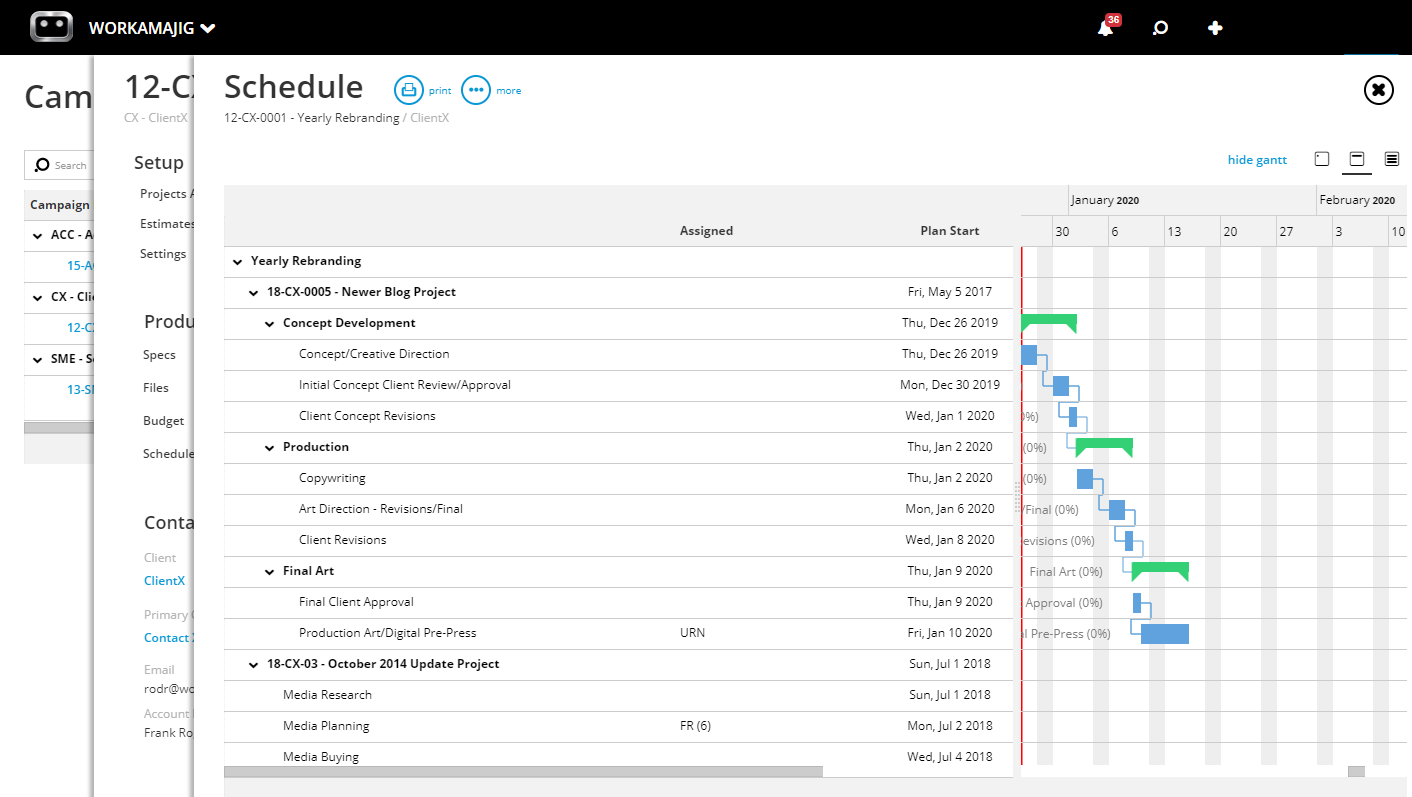
From here, you can:
-
Click a project’s name (or number) to view its details
-
Edit tasks from any project throughout the campaign, without having to navigate over to individual project schedules
Budgeting for Campaigns & Monitoring Campaign Burn
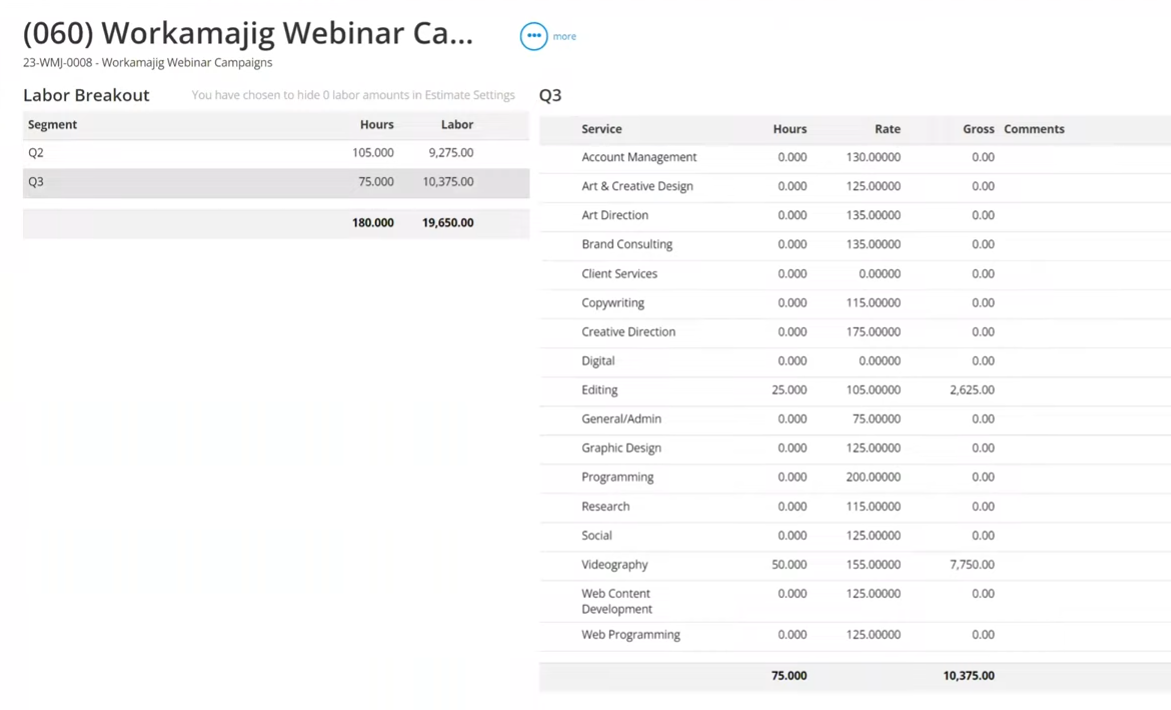
Workamajig lets you set up and track campaign budgets in one of two ways to suit your needs and work with your available data:
-
Budgeting by service. Teams use this option when they lack specific project details — e.g., they haven’t built out all the projects in the portfolio, or some project estimates aren’t reliable.
So, budgeting “by service” uses the hours you commit to each service (which will be distributed across the entire portfolio) — e.g., 200 for web design or 100 for copywriting — and multiplies them by average hourly rates to calculate labor costs (as shown in the screenshot above). -
Budgeting by projects. If you’ve finalized all the portfolio projects and each has accurate estimates, this option is generally more accurate. Workamajig pulls the estimates from all the linked projects and builds out a single, centralized budget — so you can conveniently track cost burn for the entire portfolio.
Read more: Best Campaign Management Software for Agencies & Creatives
Collaboration Tools & Today Dashboards
Workamajig offers user-friendly collaboration tools for teams to manage creative assets, feedback, and revisions in a single workspace — including:
-
Roles-based Today Dashboards tailored for all users. These personalized dashboards help users stay on top of urgent tasks, prioritize tasks, and plan their weeks.
Regular users will find all their tasks, recent conversations, time allocations, and the week's due dates (as shown in the screenshot above). Meanwhile, project managers’ dashboards also include admin tasks (e.g., items requiring approvals). -
File repositories. Teams can create these for individual projects or entire portfolios, so all project members can easily share and access what they need.
-
Project Conversations. Teams can create notes that are visible to all project stakeholders — clients, vendors, and staff — who can respond in turn. Our system stores all these interactions so teams can easily reference them later.
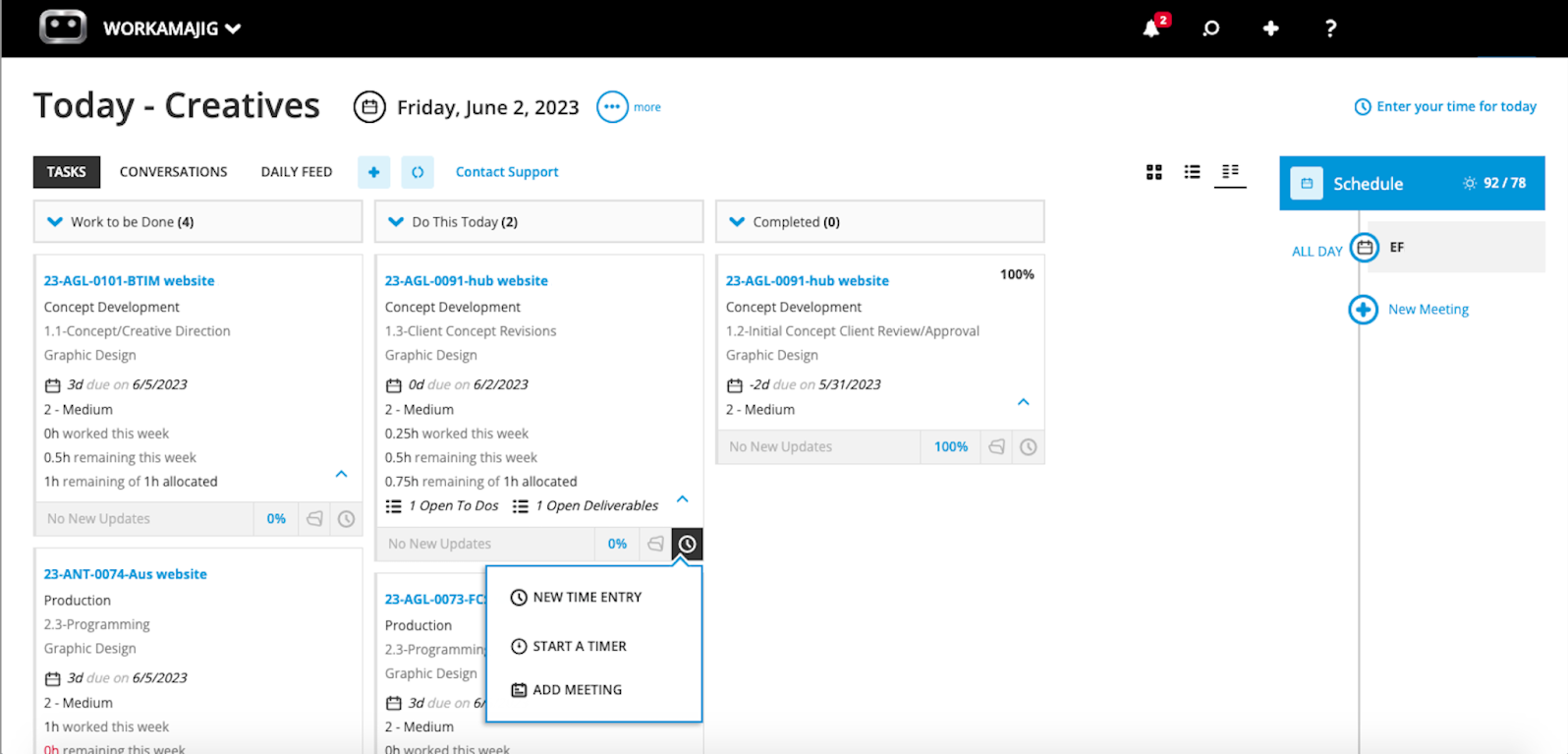
Then, project teams can manage all their work and collaborate directly on task cards. They can:
-
See the details required to start working and what’s expected
-
Tag other stakeholders for more context or feedback as they go
-
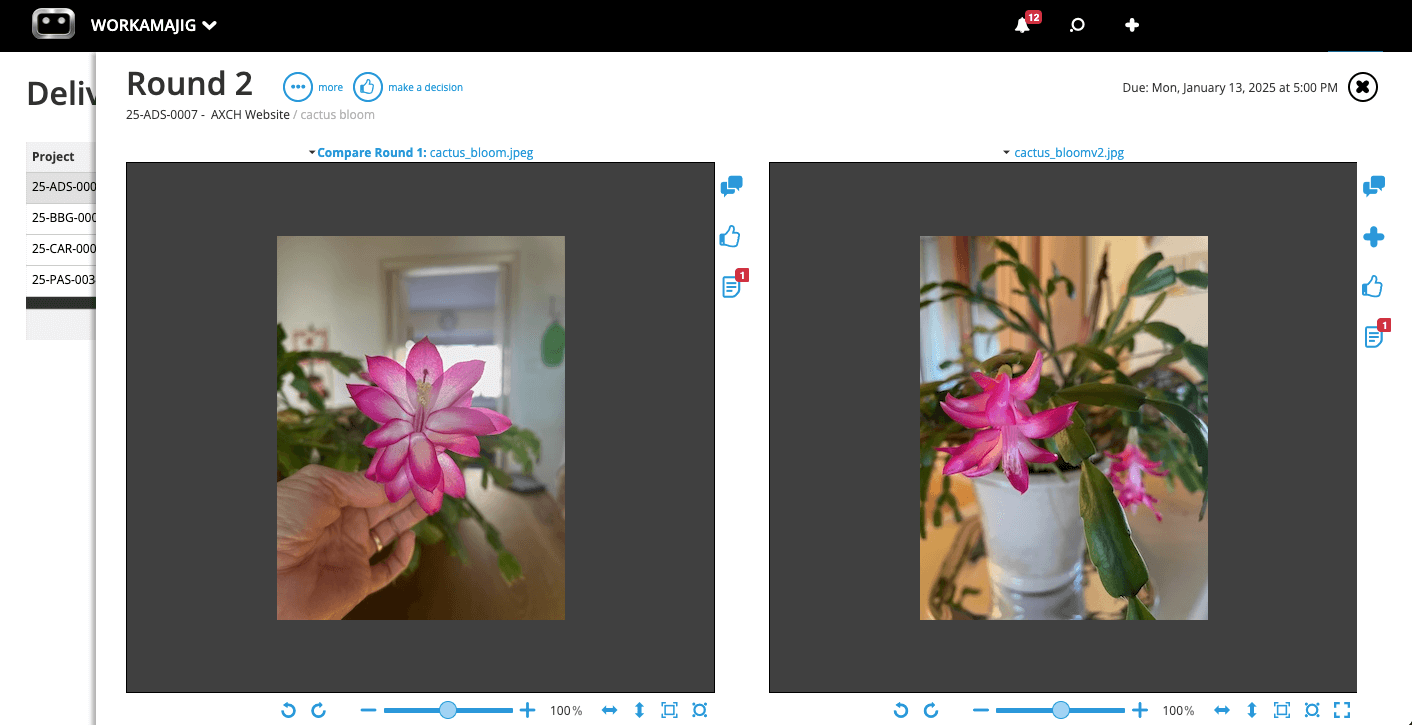
Upload content and media for review (Workamajig supports various file types and allows teams to organize files into folders)
Similarly, other stakeholders — teammates, managers, vendors, and clients — can collaborate on task cards too. They can see progress, view attachments, and leave feedback with internal proofing tools (e.g, annotating files or leaving comments).
Read more: Creative Project Management: Processes, Tips, and Tools
Resource Management — Staff & Contractors
Workamajig helps managers choose the right people for their projects with simple tools to:
- Filter resources by skill sets
- Check people's availability and capacity
- Source contractors
Our centralized staff scheduling dashboard lets managers assign staff to project tasks and manage workflows. From here, they can view each team member’s:
- Total and remaining hours
- Weekly allocations
- Percentage of utilized time
- Availability (staff can share when they’re unavailable by syncing their calendars to Workamajig)
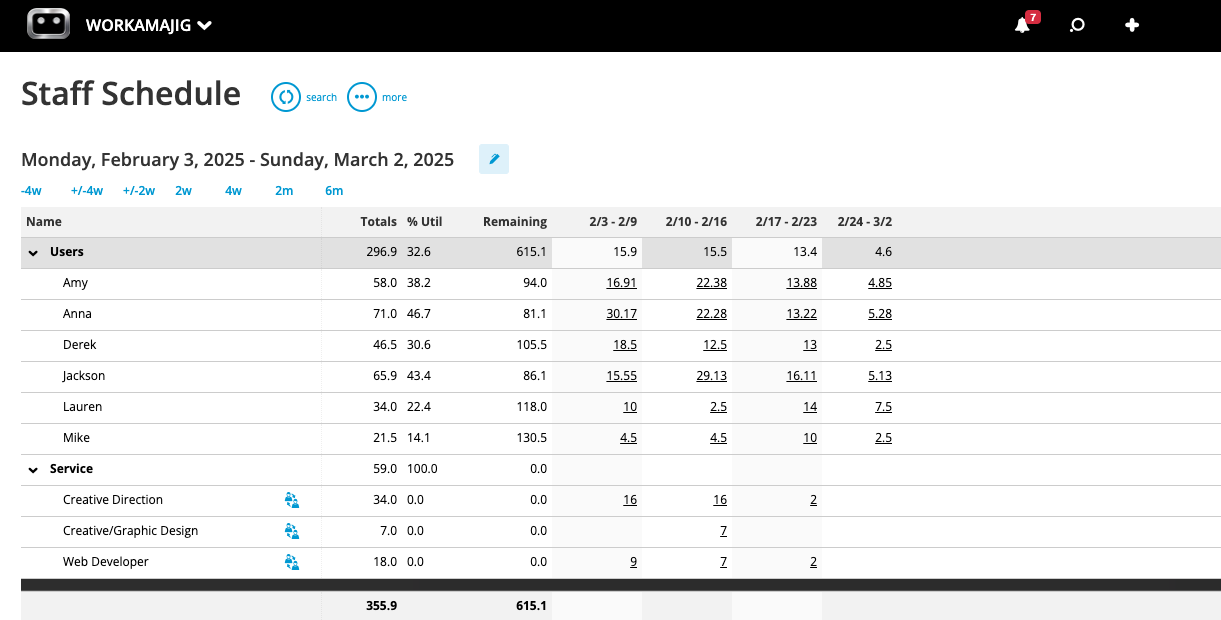
This visual overview makes it easy for managers to compare schedules and take any necessary steps to keep workloads realistic and balanced. For example, if a specific team member:
-
Has a packed schedule: Managers can reassign some of their tasks to employees with more bandwidth.
-
Has too much work assigned on specific days: Managers can adjust their weekly allocations to distribute the tasks more evenly.
By navigating to the bottom of the dashboard, managers can also check if any project activities aren’t covered by viewing all unassigned tasks.
Then, if their in-house team’s schedule is packed or they don’t have the right skill set for these jobs, managers can source outside help using Workamajig’s vendor management tools. They can:
-
Set up dedicated vendor portals to manage these relationships.
-
Request quotes, compare bids, and communicate with freelancers/contractors to source the best fit for the project.
-
Communicate with vendors, while Workamajig automatically saves all these conversations.
After completing work, vendors can send invoices, which billing teams can then reconcile with work orders and issue payments. (We’ll talk more about managing vendor invoices in our accounting system later.)
Read more:
- Creative Resource Management for Agencies: Software + FAQs
- Project Resource Scheduling for Agencies & Creatives
- 10 Steps to Optimize Resources in Agency Project Management
Time Tracking
Tracking time isn’t optional if you want to monitor project costs, evaluate profitability, and better understand your team’s overall productivity. For example, in Workamajig, as employees complete their tasks and submit time, the logged hours flow into:
-
The project monitoring dashboard. Here, the actual hours are added against the task allocations and are reflected in the project timeline. Workamajig also ties project hours to staff hourly rates and factors them into the project’s cost burn.
-
Agency Insights. These organization-wide reports reveal the finer details of where and how your team is spending their time.
However, we also know that time tracking’s one of those things that internal teams often resist. To help you get them on board, we offer several ways to track time in Workamajig without disrupting their natural daily workflows. Your team can:
- Record time directly on task cards (either manually or using a timer).
- Pull in meeting hours by connecting their work calendars to Workamajig.
- Record hours by accessing the timer from their Today Dashboard.
![Workamajig - Today - Creatives - Tasks - New Time Entry for Projects [GIF]](https://www.workamajig.com/hs-fs/hubfs/Workamajig%20-%20Today%20-%20Creatives%20-%20Tasks%20-%20New%20Time%20Entry%20for%20Projects%20%5BGIF%5D.gif?width=650&height=691&name=Workamajig%20-%20Today%20-%20Creatives%20-%20Tasks%20-%20New%20Time%20Entry%20for%20Projects%20%5BGIF%5D.gif)
All logged hours are recorded in Workamajig’s centralized timesheets. From here, managers can view project hours by task, approve and edit entries, and compare budgeted, allocated, and actual hours to inform future planning.
Learn more: How to Track Creative Project Management Hours
Workamajig Accounting Software
In addition to time, the other set of data that you need to track from a profitability perspective is expenses. While systems like Ravetree feature expense-tracking tools, Workamajig offers a more complete solution in the form of GL-ready accounting software.
Our accounting system offers various tools to record expenses and pull them in from different sources (media buys, credit card accounts, vendor invoices), so you don’t miss anything. It also eliminates redundancies and inaccuracies that occur from moving data across systems — saving your accounting team time and effort.
Your accounting team can manage all their workflows in Workamajig — including:
-
Project billing: Including fixed-fee, time & materials, retainer, advanced, prebilling, work-in-progress (WIP), and media. Workamajig automatically applies the project’s billing method when generating a billing worksheet.
-
Mass billing: Users can generate separate invoices for each project from a master billing worksheet, or include multiple projects in the same invoice.
-
Retainers: Manage all standard retainer agreements.
-
Multi-currency and multi-entity accounting: With foreign currency exchange rate tracking and transaction processing.
-
Online payment collection: Collect client payments in a variety of ways, including through Payflow Pro or Authorize.net for credit card payments.
-
Vendor invoices: Billing teams can collect vendor invoices from vendor portals, reconcile them with work orders or POs, and send payments after finalizing everything.
-
Project expense tracking: As mentioned above, Workamajig lets teams track project expenses from all sources. They can also connect credit card accounts via Plaid to pull in related charges, and aggregate media buy expenses via integrations with Strata/FreeWheel, Mediaocean, Bionic, and GaleForceMedia.
-
Receipts: Teams can track all project-related expenses by attaching and storing receipts in our system.
-
Expenses and reimbursements: Team members can create expense reports (even on mobile devices), send them for approval, and tag out-of-pocket charges to request reimbursements. Managers can then review and approve these requests.
-
Reporting: Teams can automate the tracking of key metrics and use various out-of-the-box and custom reports to evaluate profitability, performance, and productivity.
In the following sections, we’ll take you through:
-
Workamajig’s Today Accounting & Billing Dashboards, which help accounting teams keep track of their everyday tasks and prioritize anything urgent.
-
How Workamajig supports the entire project billing process, from generating a billing worksheet to accepting client payments.
-
Managing vendor invoices, including generating them and managing reconciliation.
-
Workamajig’s Financial Reports & Agency Insights to evaluate performance, productivity, and profitability.
Read more: 5 Best Media Accounting Software
Today - Accounting & Billing Dashboards
Workamajig features two main Today Dashboards tailored to accounting and billing roles.
The Today - Accounting Dashboard brings together all accounting-related items, including open accounts, bank balances, and scheduled transactions. As shown in the screenshot below, it features:
-
Items Needing Attention — which shows all items that require review, approval, or some other type of action — e.g., unapproved transactions or open account reconciliations.
-
A breakdown of account balances — categorized by each account’s type, such as bank accounts, credit card accounts, AR, and AP.
-
A views section — that allows users to navigate to listing screens so they can find important information and take action. For example, they can pull up all client invoices and filter for pending ones. Or, they can view all vendor invoices and see which ones need to be paid.
-
A Daily Feed — users can customize the date range here (e.g., by setting it for an entire week) to track interactions and task progress within that period.
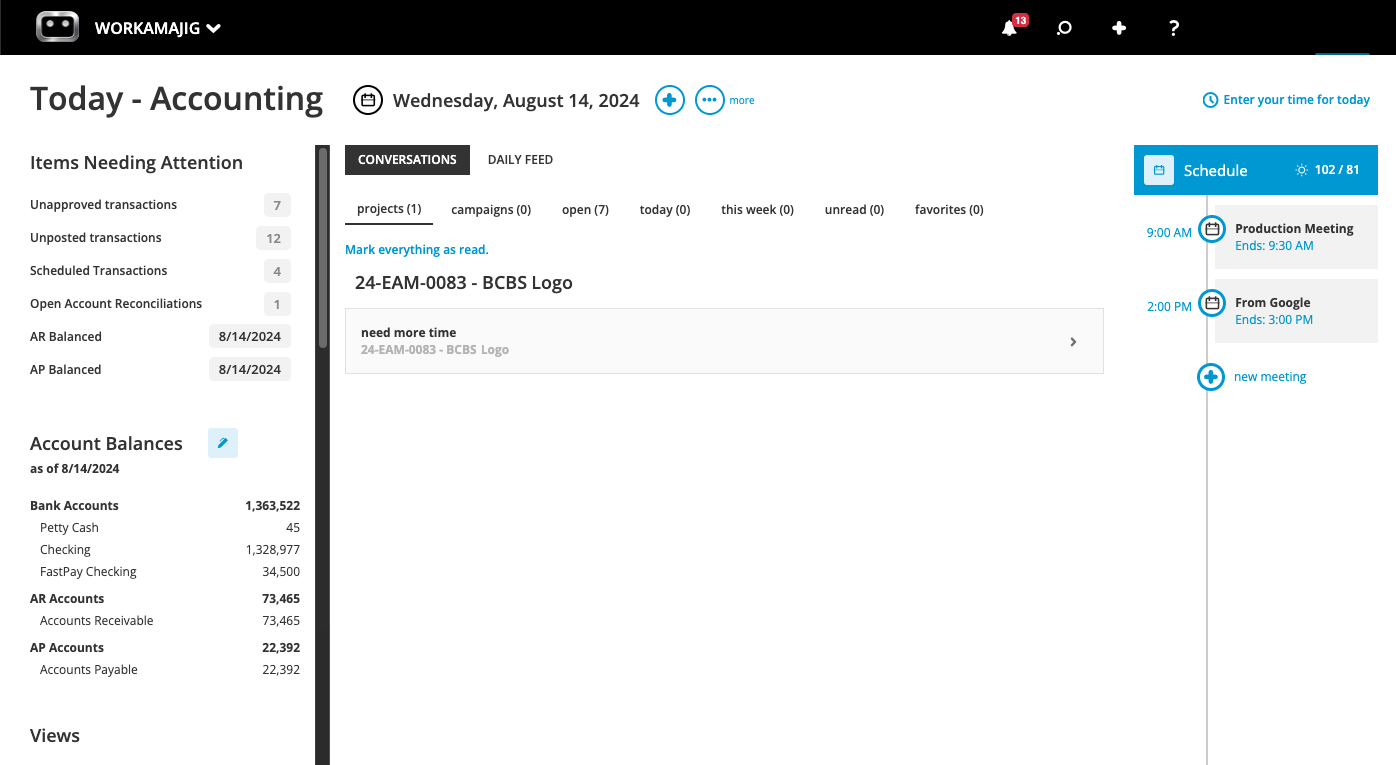
Users can also conveniently perform accounting-related actions directly from the dashboard by clicking the + icon. For example, they can create a new client invoice, upload a receipt, store a vendor invoice, make a payment, manage account reconciliation, submit a time entry, and more.
Workamajig also features a Today - Billing Dashboard that’s specifically tailored to billing workflows. As shown in the screenshot below, it displays:
-
Billing worksheets that are out for review, as well as worksheets that are approved and ready to be converted to client invoices.
-
Any projects to be billed, sorted by billing type: time & materials, retainer, media, and fixed-fee. Our system constantly monitors projects for billable items and pulls the information into your dashboard.
-
An overview of invoices and their status — so users can instantly see which invoices require attention and take actions to keep things moving.
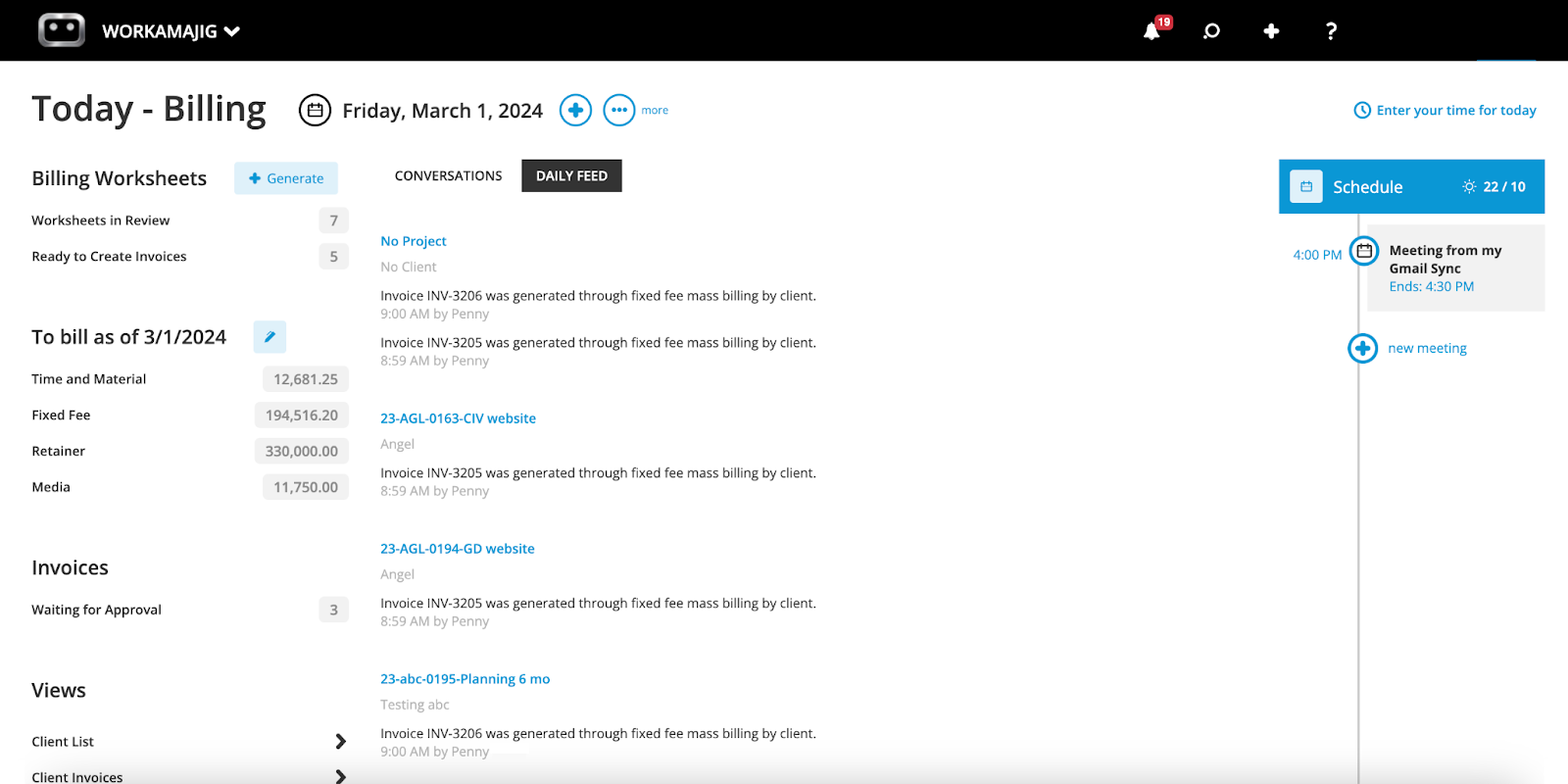
And just as with the Today - Accounting Dashboard, clicking on the + sign allows users to take quick actions, such as generating a billing worksheet, billing a project in advance, uploading a receipt, or entering time.
Billing & Invoicing in Workamajig
While our system supports virtually all billing workflows, the most popular approach is to use our electronic billing worksheets.
These allow billing teams to confirm all the details with PMs or account executives (AEs), so they can generate an accurate invoice on the first try.
Here’s how it works:
-
First, a billing role generates a billing worksheet based on transactions or as a percentage of the project’s budget (as shown above, they can do this right from their Today page).
-
Thanks to Workamajig’s project-level time and expense tracking, the generated worksheet comes ready-made with all relevant line items, including expenses, transactions, and prior billings.
-
Our system automatically routes the generated worksheet to the designated approver — usually a PM or AE — who checks all the details, makes any changes (e.g., marking items up or down, writing things off, transferring costs), and submits the verified sheet for approval.
-
Finally, the approved worksheet is automatically routed back to the billing team.
Billing roles can conveniently access these worksheets from their Today page using the “search” feature.
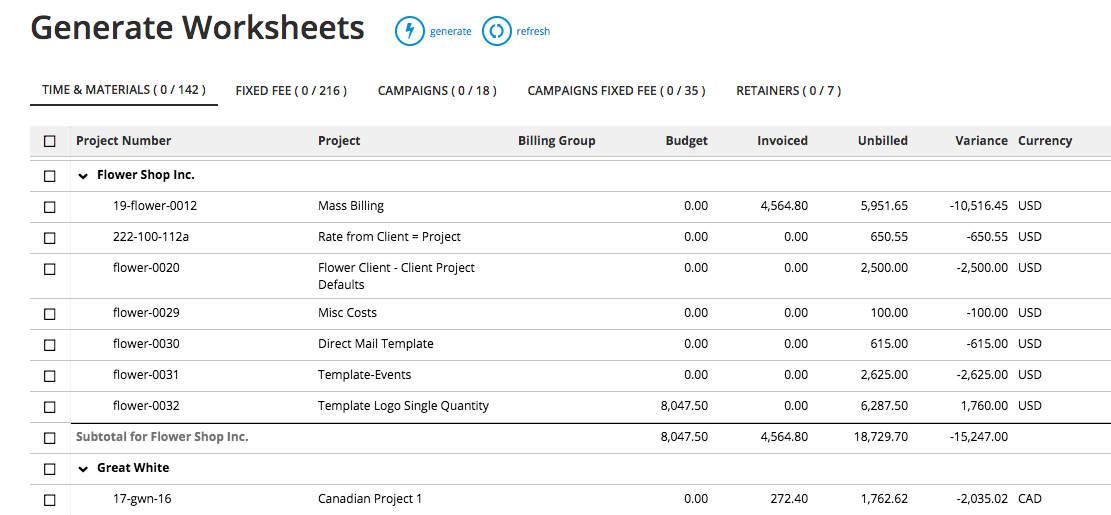
From here, users can further filter results, apply customizations, drill down into the details of a specific project/service, and make direct changes (e.g., write off a line item). Then, they can select the billing worksheets they want to generate invoices for and send the finalized invoices over to clients.
Read more: Best Creative Project Management Software with Invoicing
Vendor Invoice Management
Our system lets teams store and organize purchase orders, receipts, work orders, and copies of vendor invoices — so they can easily manage reconciliation.
When a user enters invoice details to Workamajig, our system pulls up any purchase or work orders associated with the vendor. From here, users can:
-
Select which POs to attribute to each invoice, while Workamajig automatically updates the project’s financials (expenses, budget, and profitability) accordingly.
-
Adjust figures directly in our system to ensure an exact match and that invoices read correctly for payment.
-
Leave POs with shortages or overages open if the discrepancy will be reflected in a later invoice.
-
Handle overages by allocating them to the project's billing portion so they’re captured in client billing. Or, they can write it off so it’s not passed over to the client.
-
Pay vendors via our integrations with Edenred Pay (formerly CSI) and AvidXchange (formerly FastPay) after invoices are finalized.
Additionally, since Workamajig stores all relevant details, teams can compare quotes, POs, and final invoices to see how often they align and assess vendor reliability. Vendors who frequently send invoices higher than their initial quotes might not be the most ideal long-term partners.
Financial Reports & Agency Insights
As an all-in-one system, Workamajig’s native reporting dashboard combines all your time, expense, and project data — so you can evaluate profitability and productivity from different perspectives and use this data to guide decision-making.
For example, our system includes Profit & Loss reports by project, campaign, service, and client, so that you can see specifics like:
- Which accounts bring in the most revenue
- Your most profitable project types
- Which services are loss-leaders
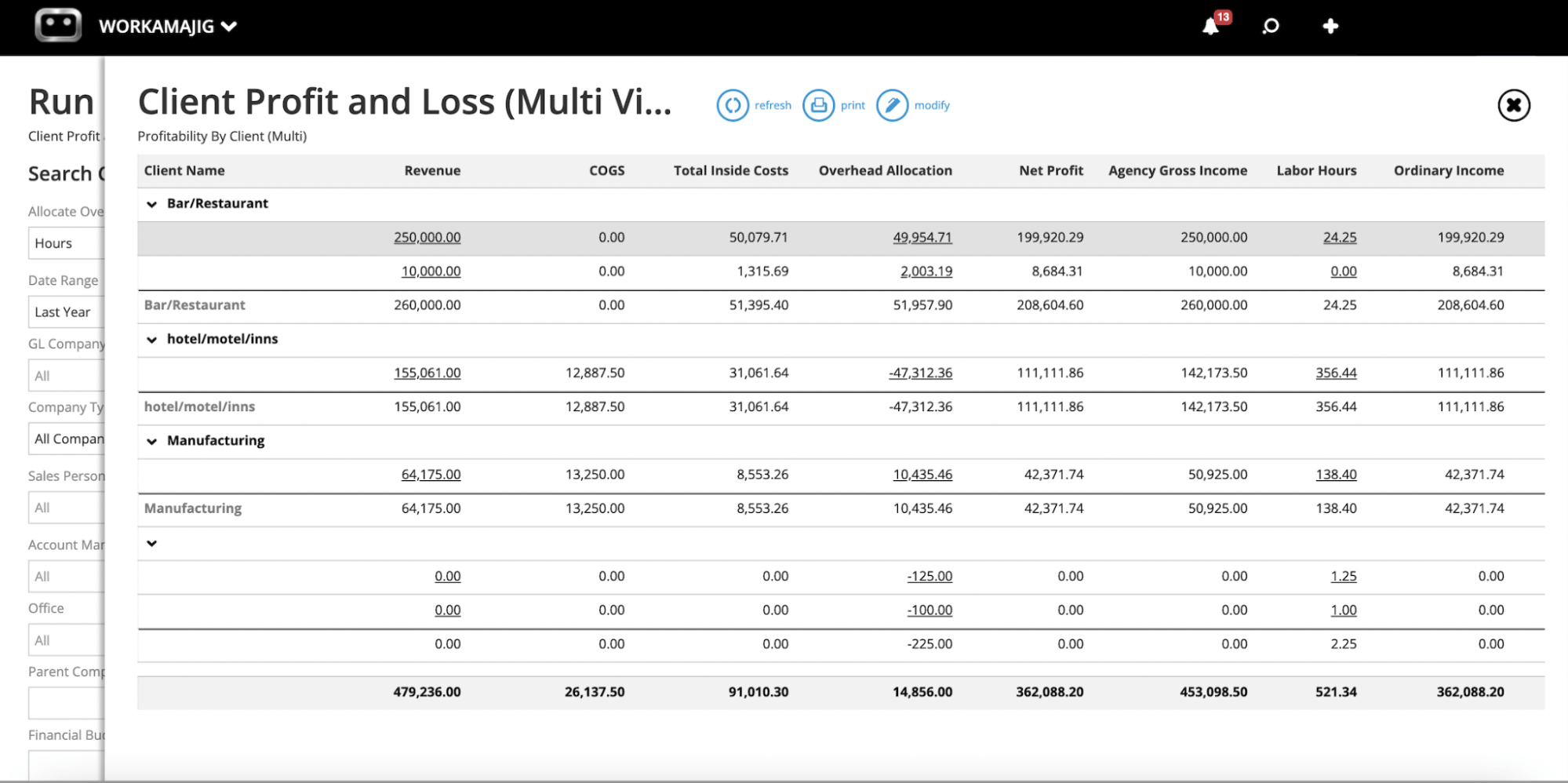
And more. Our system features various other financial reports, including:
-
General Ledger (GL) reports to monitor GL activity and cash flow
-
Cash projections and revenue forecasting to see how scheduled projects can impact profitability
-
Project budget drill-downs to see exactly where money is going on specific work
-
Billable summary reports to compare billable vs. non-billable hours
-
Hourly realization rates to evaluate the relationship between productivity and profitability from different perspectives
-
Key metrics monitor to track the most important metrics for your business
You can also save your most important reports so you can easily access them later from your personalized dashboard.
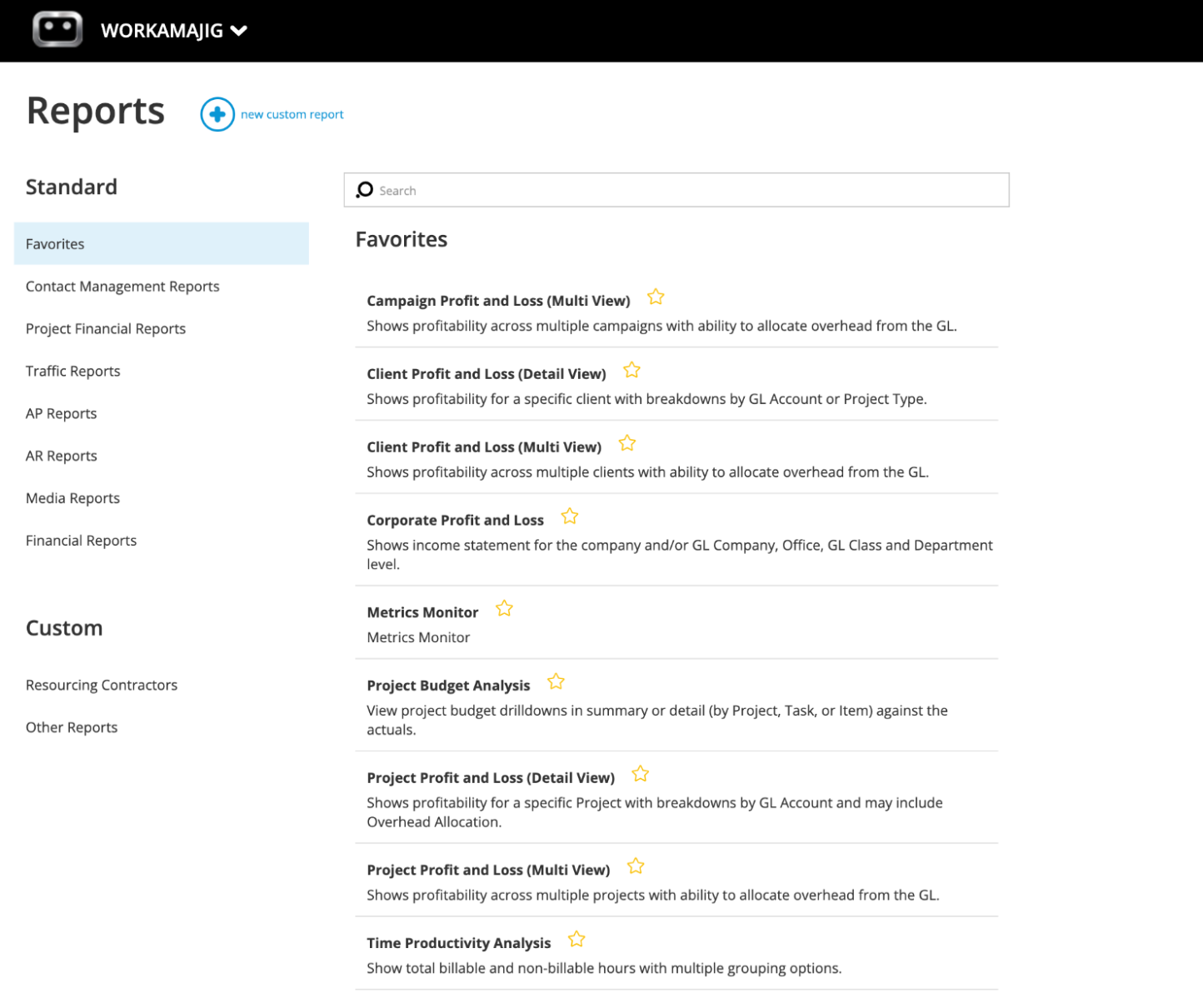
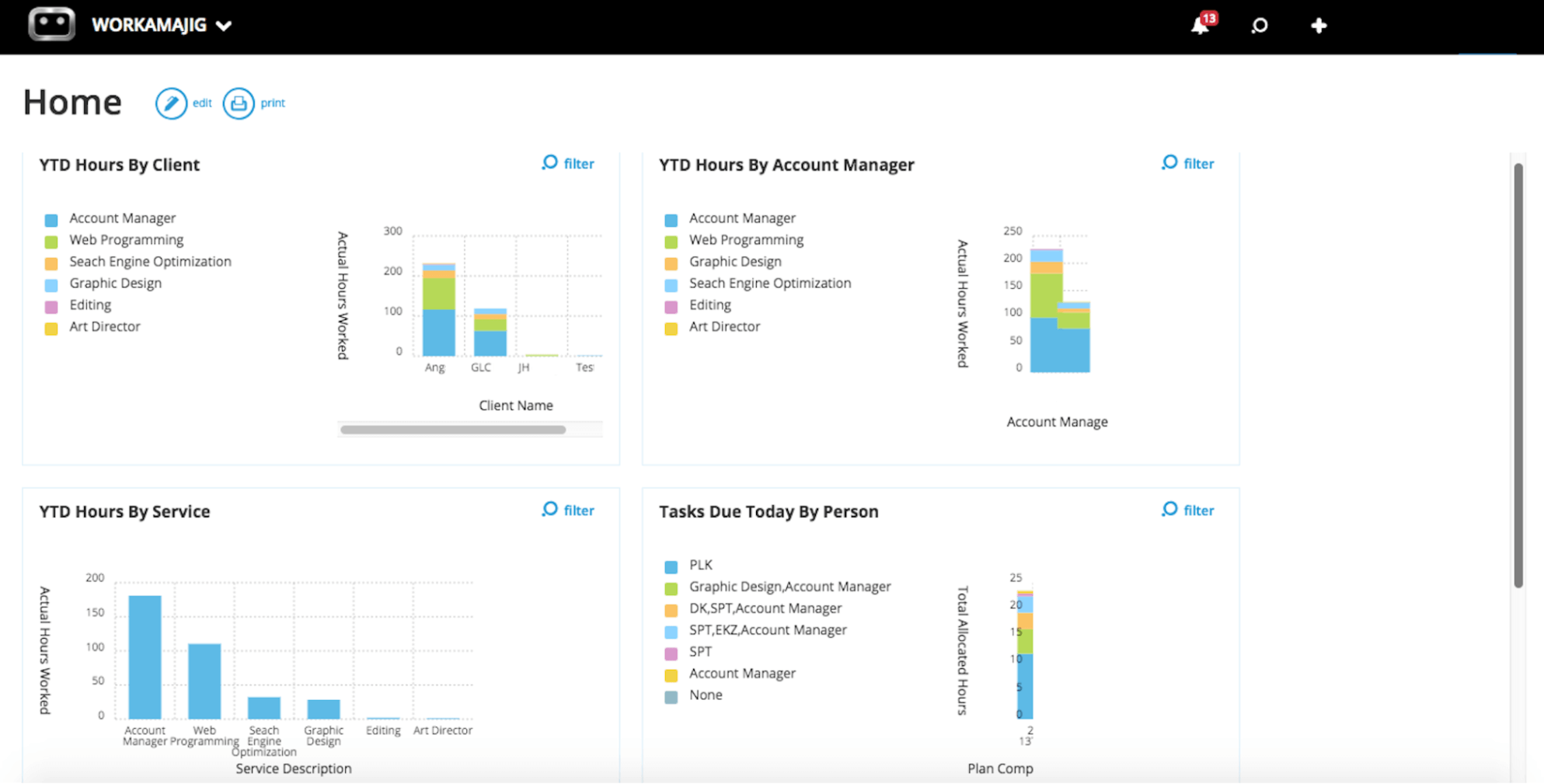
Our system also includes an Agency Insights Dashboard featuring hourly reports that show where employees spend their time. You can:
-
Filter hours by project, service, client, campaign, department, or employee.
-
Compare billable and non-billable hours to evaluate resource utilization.
-
Identify problem areas — for example, resource-intensive services may be cutting into your overall profit margins.
Read more: Best Creative Project Management Tools with Financial Tracking
Workamajig Packages & Pricing
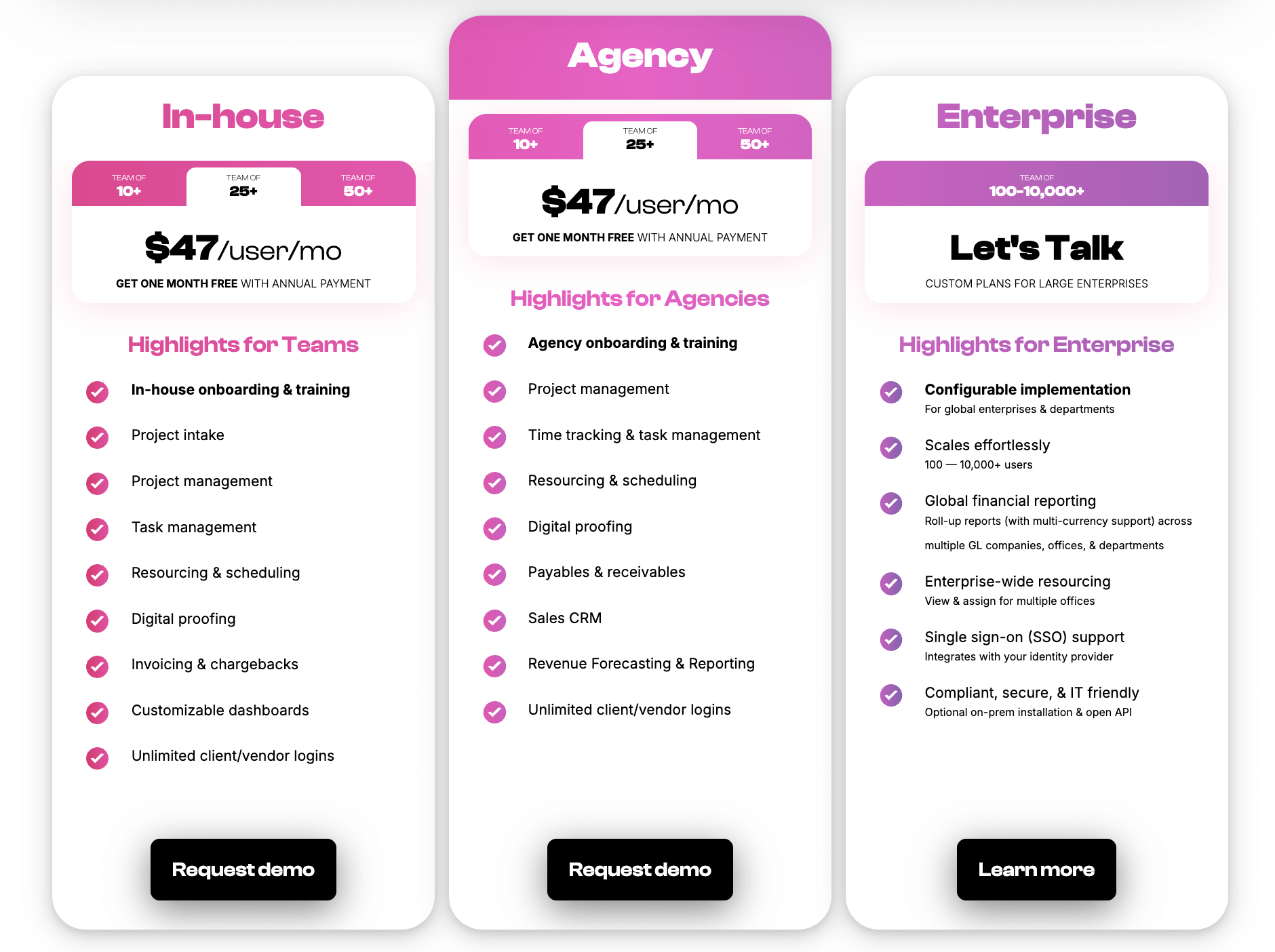
We offer tailored solutions for both agencies and in-house creative teams. All packages include:
- All Workamajig features
- A dedicated account manager to guide onboarding and training
- Ongoing support
Pricing is by team size. Check out our rates:
To see Workamajig live in action, request a personalized demo with our team.
2. Kantata
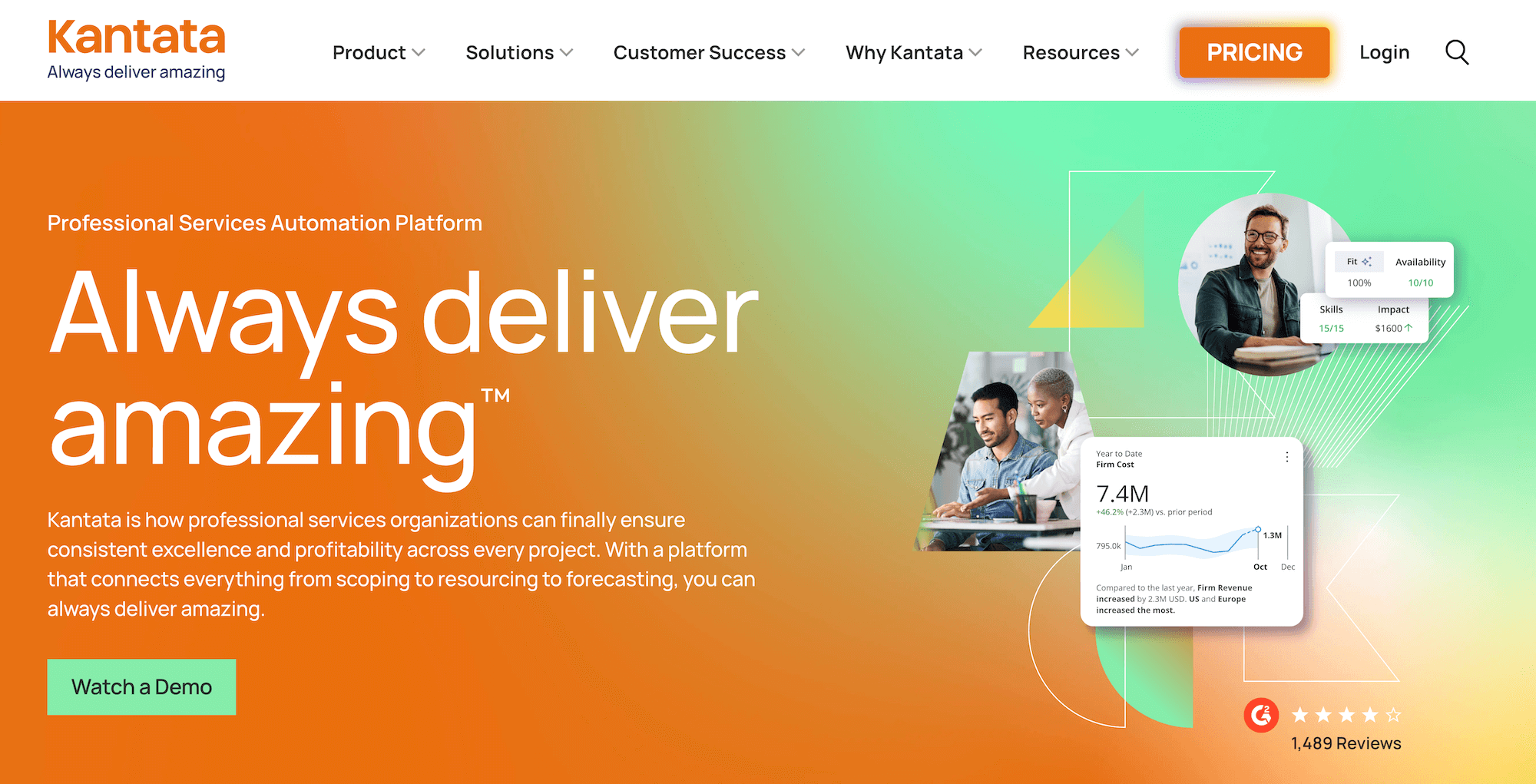
Kantata is an enterprise-grade professional services automation (PSA) vendor with two main products:
-
OX (formerly Mavenlink), a standalone cloud-based system that integrates with some Salesforce apps and other third-party tools
-
SX, built natively on Salesforce. It's embedded in Sales Cloud, Service Cloud, and Revenue Cloud, supporting seamless integration with Mulesoft and several third-party tools.
Although these two products are hosted differently, they both share the same core capabilities: project management, resource management, financial management, team collaboration, and business intelligence reporting tools.
Compared to Ravetree, Kantata offers more sophisticated capabilities across all of its modules, such as:
-
Advanced portfolio management features that support project hierarchies, complex organizational structures, and professional services firms with multiple service lines.
-
More sophisticated project reporting — including critical path analysis.
-
Enterprise-grade financial management tools — with complex billing rules, sophisticated revenue recognition, complex billing rules, multi-currency support, and integrations with various ERP systems.
While Kantata’s suite of features is well-rounded overall, the system notably lacks native accounting and CRM capabilities. That said, teams that use Salesforce are covered on the CRM front by Kantata SX, OX supports integrations with CRM platforms, and both SX and OX support integrations with accounting tools.
It’s worth considering Kantata over Ravetree if (a) your organization has already invested in other Salesforce apps or (b) you require a more robust system to support complex workflows and organizational structures.
However, keep in mind that the vendor requires users to purchase at least 50 licenses to use its platform, making it less friendly to smaller teams than Ravetree. Many users also highlight issues with creating reports in Kantata — they say customizations are limited and that it’s not always easy to build reports around their desired datasets.
Find more Kantata reviews here.
Features
- Project planning tools, like project estimation and forecasting
- Project monitoring
- Automated, real-time insights into projects to guide next steps and prevent overruns
- Portfolio management
- Resource scheduling
- Resource forecasting and capacity planning
- Resource management tools, such as skills and vendor management, to source the best talent for projects
- Time tracking
- Budget tracking
- Project accounting to track project costs, monitor project burn, and set financial goals
- Invoicing
- Revenue forecasting
- Feedback surveys for project teams and clients to report on satisfaction and overall project success
- Team collaboration and feedback tools, like file sharing and commenting
- Business intelligence reports, with 60+ service-centric reports
- Integrations
Pricing
Kantata does not publicly list pricing. Interested users can fill out the form on their website (which asks for details such as the number of seats required, contact information, and business location) to view pricing options.
3. Accelo
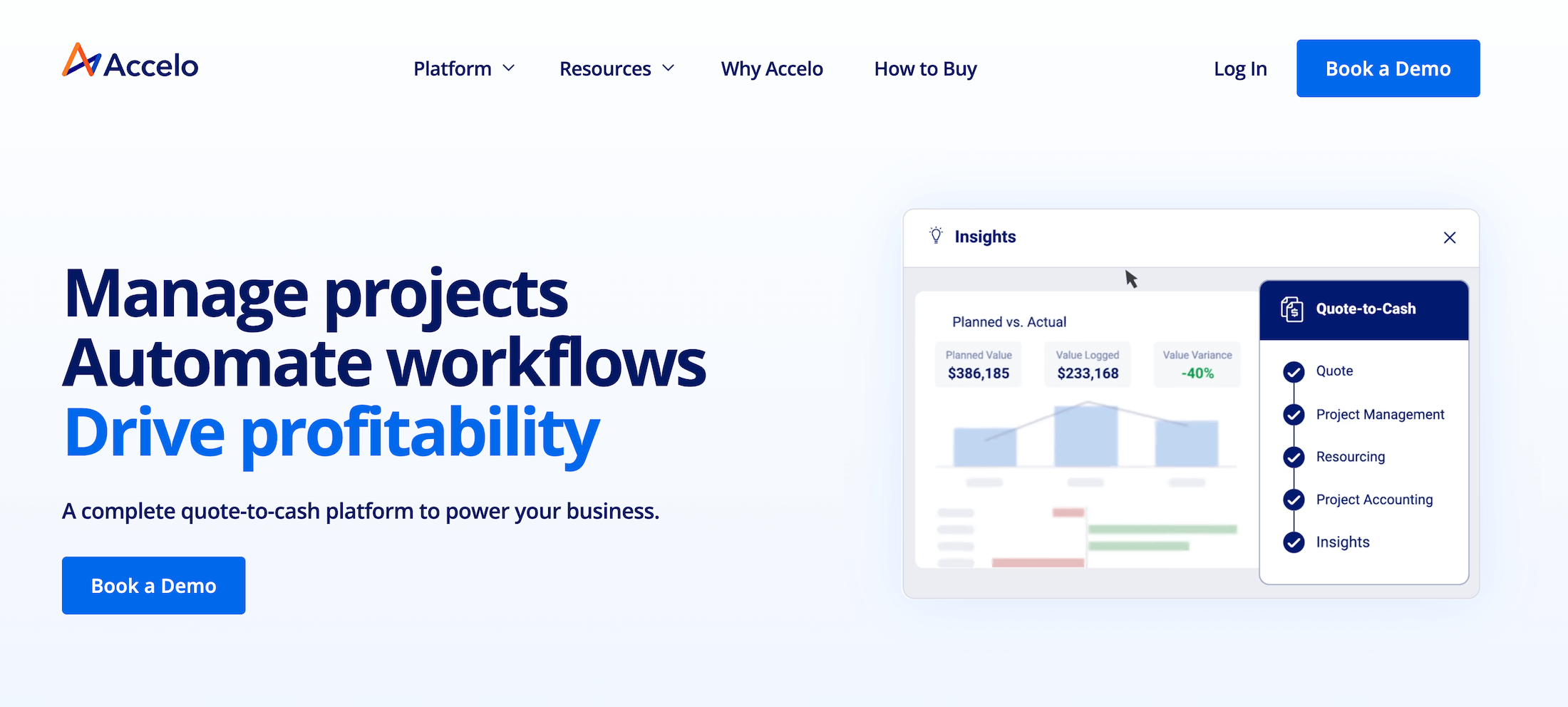
Accelo is another PSA platform that allows teams to manage projects, resources, clients, and finances in one place. Like Ravetree, Accelo unifies workflows from project intake to billing and offers real-time budget monitoring, expense tracking, project health indicators, planned vs. actual comparisons, and profitability forecasts.
Teams looking into Ravetree alternatives will appreciate Accelo’s robust CRM suite and handy workflow automation tools, as it provides all the essential tools PSA teams need. Its unified hub lets users manage leads, opportunities, and existing client relationships in one place. Teams can:
-
Manage all client communications in one place, receive automated client updates, and collaborate with team members easily.
-
View sales, projects, tickets, and client-level profitability. They can pull up details for different clients, including the amount invoiced over the past 12 months and what’s remaining.
-
Automate the process from quote to project intake. Teams can generate estimates from project templates, keep delivery teams posted about tentative schedules, and convert quotes to active projects with a click.
While Accelo offers extensive features and customization, the trade-off is a steep learning curve that can make adoption more difficult than with Ravetree. As one user puts it:
“Accelo is not suitable for small companies; it has overwhelming and complex configuration demands. Some modules on the mobile app are not well polished, and they affect the functionality of this app.”
Many users say that it takes time to learn the platform’s various features and to tweak it to their unique workflows.
Find more Accelo reviews here.
Features
- Project management
- Client relationship management (CRM)
- Resource management & scheduling
- Time tracking, including timers, billable hours vs. non-billable, manual time entry, email time capture & meeting time capture
- Business intelligence tools, including real-time budget monitoring, project health indicators, planned vs. actual comparisons, automated notifications & profitability forecasts
- Retainers
- Billing & Invoicing
- Integrations with accounting & expense management systems
Pricing
Accelo offers custom quotes per agency.
4. Scoro
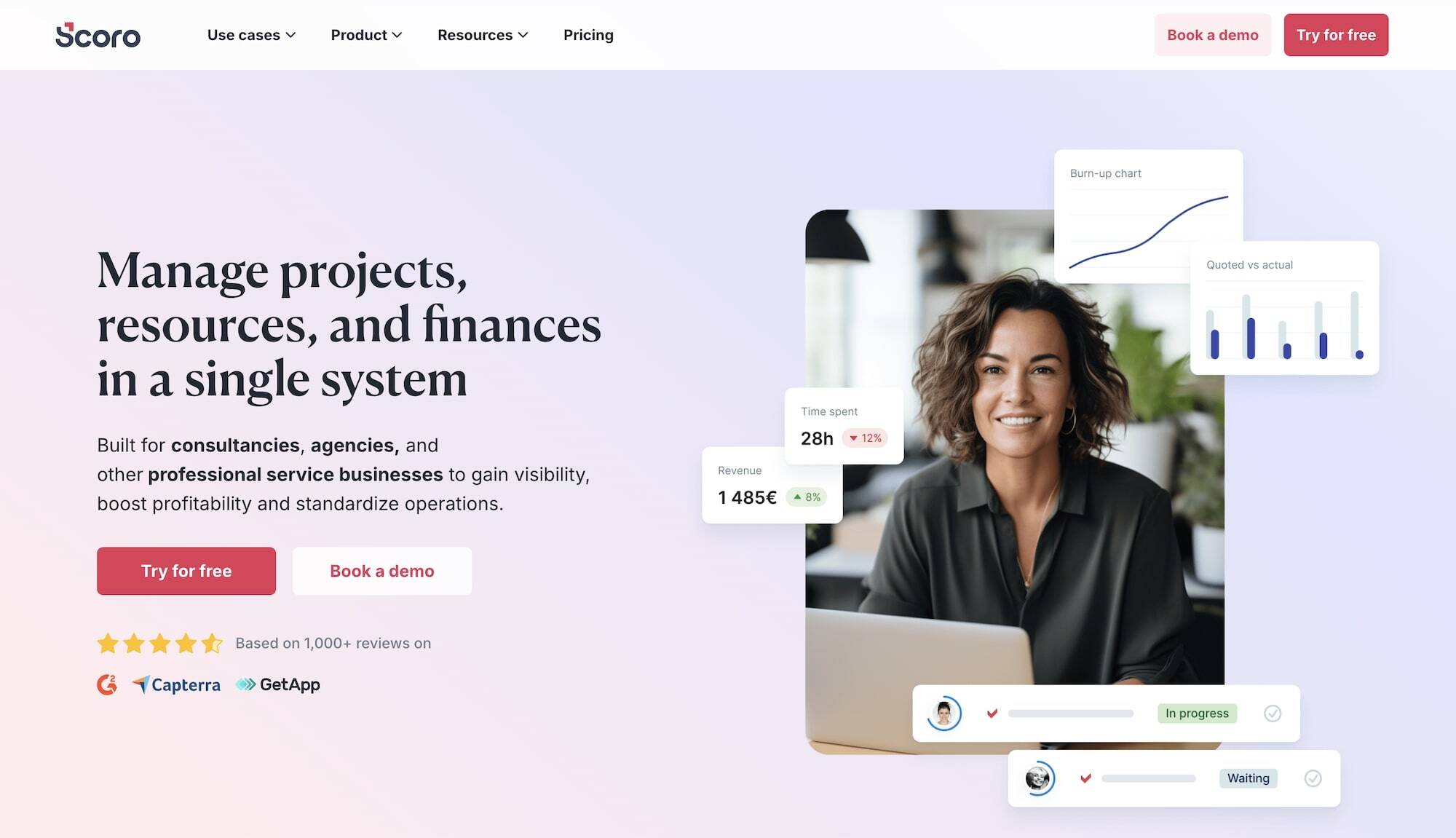
Scoro is an all-in-one agency management system that supports all client service businesses — agencies, PR firms, consultancies, developers, IT services, and more. The platform unifies project, resource, financial, and client relationship management. It receives a lot of praise in particular for its robust project monitoring, financial management, and automation tools, including:
-
Invoicing: Scoro supports automated invoicing, partial invoicing, and retainer management. Its forecasting tool also makes it easy to track how much of each project has already been invoiced.
-
Quoting: Professional services teams can ensure everyone prices services consistently by standardizing proposal creation with predefined service packages. Teams can then instantly generate quotes for these packages with templates. They can also set up rules and approval workflows for high-value quotes, and customize their look and feel.
-
Estimating: Scoro’s estimating tools allow users to analyze the finer details of effort, cost, and price planning. They can also compare actuals vs. estimates and analyze results across project portfolios to ensure profitability.
-
Customizable summary bars: These are specific to each project and display progress, real-time insights, and trends.
-
Forecasting: Users can monitor project burn and predict the likely profit by also factoring in pending work.
-
Metrics tracking: Teams can specify metrics for Scoro to track and set up “watchdogs” to email the right people automatically after reaching certain thresholds.
However, users considering Scoro should also know that:
-
Many advanced capabilities (timesheets, planning tools, sales pipelines, etc.) are locked behind higher plans.
-
It lacks a dedicated accounting module, and the CRM feature is quite basic. So teams using Scoro resort to third-party integrations, which further drive up their costs.
-
Several users also report that the platform is buggy at times, especially when working with large datasets.
-
The platform has a steep learning curve, and only teams with 50+ users receive a personalized onboarding experience. Smaller teams must either rely on self-onboarding or relatively limited support.
Features
- Project management
- Resource planning
- Time tracking
- Collaboration tools
- Quoting & budgeting tools
- Invoicing
- Cost management
- Retainers
- Sales CRM
- Reporting
Pricing
Scoro offers three packages — but only the highest plan (Performance) offers the full suite of features that matches Ravetree’s:
-
Core ($23.90/user/month): We don’t recommend this package because it lacks essential features across all modules, such as project templates, recurring tasks, and financial reporting.
-
Growth ($38.90/user/month): While this tier includes Scoro’s project, resource, and financial management tools, it only supports contact management.
-
Performance: ($59.90/user/month): The recommended package that unlocks Scoro’s full business management suite, including sales pipelines and reports, cost and profit forecasts, revenue recognition, price lists, and more.
Scoro also offers custom enterprise plans with deeper capabilities, including multi-account reporting, time locking, company budget & forecasts, and more.
Read more: Best Scoro Alternatives for Agencies
5. BigTime
BigTime is a top-rated (4.5 stars on G2) work management system that offers comprehensive project portfolio management, resource management, invoicing and payments, time and expense tracking, and reporting tools.
BigTime has split its offering into two solutions: 1) BigTime PSA, which includes all of the platform’s core features, and 2) BigTime Enterprise PSA, which includes the same core features set plus deeper customizations, powerful BI reporting, and multi-entity, multi-currency capabilities.
Enterprise PSA’s BI reporting tools stand out in particular. The system:
-
Pulls insights from Power BI, Tableau, and your internal data warehouse system
-
Unifies project, client, and financial data
-
Syncs with CPQ, CRM, and data visualizations solutions — helping teams move quotes from quotes to cash in one place.
-
Offers governance tools to control role-based access and follow the best accounting practices
The vendor’s resource management also offers some handy features that aren’t common in this segment, including:
-
Time off request management
-
Scenario modelling, to measure the impact of different resource plans on project profitability)
-
A unified talent management hub that stores information about the skills, experience, and certifications of all employees
Users praise BigTime’s powerful reporting capabilities, intuitive interface, and ease of setup. They say it only takes them a few weeks to get the system up and running.
However, the system isn’t without its downsides:
-
Its features are sold as “modules”. Their standard plans include core project management, invoicing, and expense management tools, but users must upgrade to access the resource, quote, and data management modules.
-
Several users report bugs, especially in integrations. For example, one user says,
“The software is very buggy, and support can be slow to address issues. Right now, we have two open support tickets regarding issues that are affecting our outgoing invoices. One of them has been open for 6 months, and the other for 16 months.
And another reviewer mentions:
“It can be challenging to get BigTime to communicate accurately with QuickBooks. Syncing the two often creates unnecessary work because the two don't see eye to eye on certain things.” -
It lacks a CRM. So, users must integrate BigTime with a tool like HubSpot or Salesforce to support those workflows.
Find more BigTime reviews here.
Features
- Scoping & quoting
- Invoicing & payments
- Time & expense tracking
- Resource planning
- Project management
- Portfolio management
- Reporting & analytics
- BI reporting & data visualizations
- BigTime AI assistant
Pricing
BigTime PSA offers three standard packages that all include BigTime delivery (the project management suite), time tracking, invoicing, expense management, and payments. They are:
-
Essentials: Includes everything mentioned above plus automatic reconciliation, a QuickBooks integration, and the BigTime AI-powered assistant.
-
Advanced: Unlocks multi-currency expense management, custom reporting, project templates, and custom invoice templates.
-
Premier: Everything in Advanced plus multi-currency invoicing, project budgeting, multi-level approvals, and custom cost & rate management.
The vendor doesn’t publicly list pricing for its plans, but it states that the lowest tier starts at $20/user/month. And BigTime Enterprise PSA is available only through custom plans. All interested users must contact BigTime for a custom quote.
6. Bonsai
Bonsai offers a work management system geared primarily toward freelancers, solo entrepreneurs, and small businesses, though medium-sized agencies also use it. At a glance, it offers almost the full works — project management, time tracking, resource planning, meeting scheduling, client management, and financial management.
But a closer look shows it's lacking many features — here’s what a couple of users have to say about this:
“If you need heavy-duty CRM or full accounting features, you will still pair it with other tools. But for everyday operations, it delivers a smooth, streamlined experience.”
“The ‘jack of all trades, master of none’ figure of speech applies to Bonsai's feature sets sometimes. It might be a thing that is missing or a feature that exists, but doesn't quite do what I want it to do for a particular need.”
As the first user notes, Bonsai’s CRM and financial management tools are particularly basic. For example, it lacks features for managing teams, tracking activities, engaging opportunities, and measuring sales performance.
Another reason why Bonsai isn’t the best Ravetree alternative for larger teams is its pricing plans. First off, only the higher tiers (Premium and Elite) remove Bonsai’s branding. Moreover, at the time of writing, the Premium plan costs about the same as Ravetree — but it lacks Xero integration, timesheet locking, custom roles, and custom data imports.
The Elite plan unlocks these features but is priced significantly higher per seat than Ravetree — and, as mentioned, you’ll have to pay separately for an accounting software and possibly a CRM.
Still, Bonsai serves freelancers and smaller teams well. Its entry-level plans are affordable, the interface is sleek and intuitive, it's easy to implement, and the system offers extensive client management tools. Users can:
-
Create branded client portals and share invoices, agreements, and secure project access.
-
Easily build out contracts, proposals, invoices, and agreements with Bonsai’s suite of dedicated tools. These features also pull in relevant data — including project estimates, expenses, and client information — to save time.
Find more Bonsai reviews here.
Features
- CRM
- Client management features, including communication tools & portals
- Project management module
- Task management
- Templates
- Team & client collaboration features
- Resource planning
- Estimating
- Time tracking
- Financial management
- Budget tracking
- Invoicing
- Integrations
- Automation
- Reporting
Pricing
Bonsai offers four pricing plans to support teams of different sizes and specific needs:
-
Basic ($15/user/month): A starter plan that includes access to most of Bonsai’s modules, including the CRM, project management, and time tracking.
-
Essentials ($25/user/month): Unlocks project templates, client portals, scheduling, and financial tools — including invoicing and expense & income tracking.
-
Premium ($39/user/month): This is Bonsai’s most popular plan — it includes everything in the Essentials plan, plus access to integrations, reporting, workload management, and various other features to support the daily operations.
-
Elite ($59/user/month): Unlocks all platform features and dedicated support.
Read more: Bonsai Software Reviews & Alternatives
7. Productive
Productive is the last, fully integrated tool on our list that combines project intake, project planning, resource management, time tracking, CRM, budget monitoring, invoicing, and financial reporting.
The remaining systems below are comprehensive project management tools that rely on various integrations to support the same workflows as Ravetree.
Productive is, overall, a well-rounded solution in the features department — they’ve got some handy tools spread across modules that aren’t common in this segment. The Scenario Builder in the project management tool is particularly noteworthy — PMs can create multiple project scenarios and compare all possible outcomes.
Similarly, the resource planning suite includes time-off management (like BigTime offers), placeholders to create scenarios for hiring internal or external staff, and a “tentative bookings” feature to build rough plans quickly. Its CRM has also come a long way, developing from a very basic tool to a polished system that rivals Ravetree’s.
However, the most common gripe with Productive is pretty alarming — users report several bugs, a consistent theme that persists across new updates. As one user notes:
“Productive could be a very promising product, but there are bugs littered throughout the product, especially in critical modules like timesheets and invoicing, which makes us very hesitant to switch over to it. Their support team is slow to answer if you are in the US since they are in Europe, and they don't fix bugs quickly.”
Another common complaint about Productive is its steep learning curve and the lack of personalized onboarding, which is exclusive to enterprise plans.
Find more Productive reviews here.
Features
- Project intake and sales CRM
- Project management
- Resource management
- Time tracking and timesheets
- Documents (to create shared docs and enable team collaboration)
- Financial management
- Billing and invoicing
- Budget and expense management
- Real-time profitability tracking
- Reporting
- Integrations with QuickBooks, Xero, Sage, SAP, Justworks, ADP, Slack, HubSpot, Google, Microsoft, and Jira
- Open API
- Mobile app (for iOS & Android)
Pricing
Productive offers three standard packages:
-
Essential ($11/user/month): Offers access to Productive’s basic features, including project management, budgeting, and time-tracking. However, this package lacks resource management.
-
Professional ($28/user/month): Unlocks more advanced features, the resource management module, and integrations with accounting software solutions. It’s a decent starter plan to consider.
-
Ultimate ($39/user/month): Provides access to Productive’s full suite of tools.
They also offer custom enterprise plans, but you must contact Productive for a quote.
Read more: 8 Best Productive Alternatives for Agencies
8. Monday.com
Monday.com is best known for its project management system, called Monday Work Management. However, the vendor also offers several other B2B software products — including CRM, marketing automation, software development management, and help desk solutions.
Monday’s products are sold separately, although they support full, native integrations. So you’d have to subscribe to Work Management and Monday CRM to cover Ravetree’s project management, resource planning, and CRM capabilities — and rely on third-party integrations for time tracking, financial management, and accounting. In short, this means you should expect to spend significantly more on your overall tech stack.
In their respective product categories, both solutions — Work Management and Monday CRM — are pretty well-rounded on the feature side. However, features such as resource planning, portfolio management, multi-level permissions, advanced reporting, and complex automations are reserved for users on the Enterprise plan.
Users are drawn to Monday for its ease of use and implementation — the interface is intuitive and friendly, and the platform offers hundreds of templates to help you get started. Also, if you do choose to invest in integrating with all the necessary third-party apps, then Monday does a good job at pulling time, expenses, people, and projects together.
As one user notes:
“What I like most about Monday Work Management is how easy it makes it to see the work at a glance. I can open a board and, within a few seconds, understand what’s in progress, what’s waiting on the client, and what’s late. The status labels, owners, and due dates are very clear, so there’s less guessing and fewer “who has this?” messages in Slack or email.”
Find more Monday Work Management reviews here & Monday CRM reviews here.
Features
- Templates
- Task management — with Gantt charts, Kanban boards, and calendar views
- Project monitoring
- Team collaboration tools
- Forms
- Customizable workflows & dashboards
- Client management
- Automation
- Integrations & API
- Reporting dashboard
- Mobile apps (for iOS & Android)
Pricing
Monday.com’s Work Management platform and CRM system both offer three standard packages.
Monday also offers a free Work Management plan that supports up to 2 users and has limited features. Its three paid plans are:
-
Basic ($12/user/month): Offers unlimited viewers and items but lacks several essential features.
-
Standard ($14/user/month): Unlocks collaborative tools (including guest access), integrations, higher file storage limits, additional project views, and more.
-
Pro ($24/user/month): Includes everything in the Standard plan plus dependency and formula columns, time tracking, board administrator roles, private boards, and more.
Users must upgrade to an Enterprise plan to unlock project portfolio management capabilities.
Monday CRM’s standard packages include:
-
Basic ($15/user/month): This tier lacks many essential features, including lead and deal management, so we don’t recommend it. It also includes the following limits: 1000 active contacts & deals, 20 quotes & invoices per month, and one custom dashboard.
-
Standard ($20/user/month): Unlocks lead & deal management, deeper collaboration tools, and higher limits (up to 10k contacts and deals).
-
Pro ($33/user/month): Offers everything in the Standard plan plus time tracking, mass emails, email sequences, and integrations with other CRMs. It also offers significantly higher limits — including unlimited contacts & deals, 250 quotes & invoices per month, and up to 50 custom dashboards.
Read more: Best Monday.com Alternatives for Agencies & Creatives
9. ClickUp
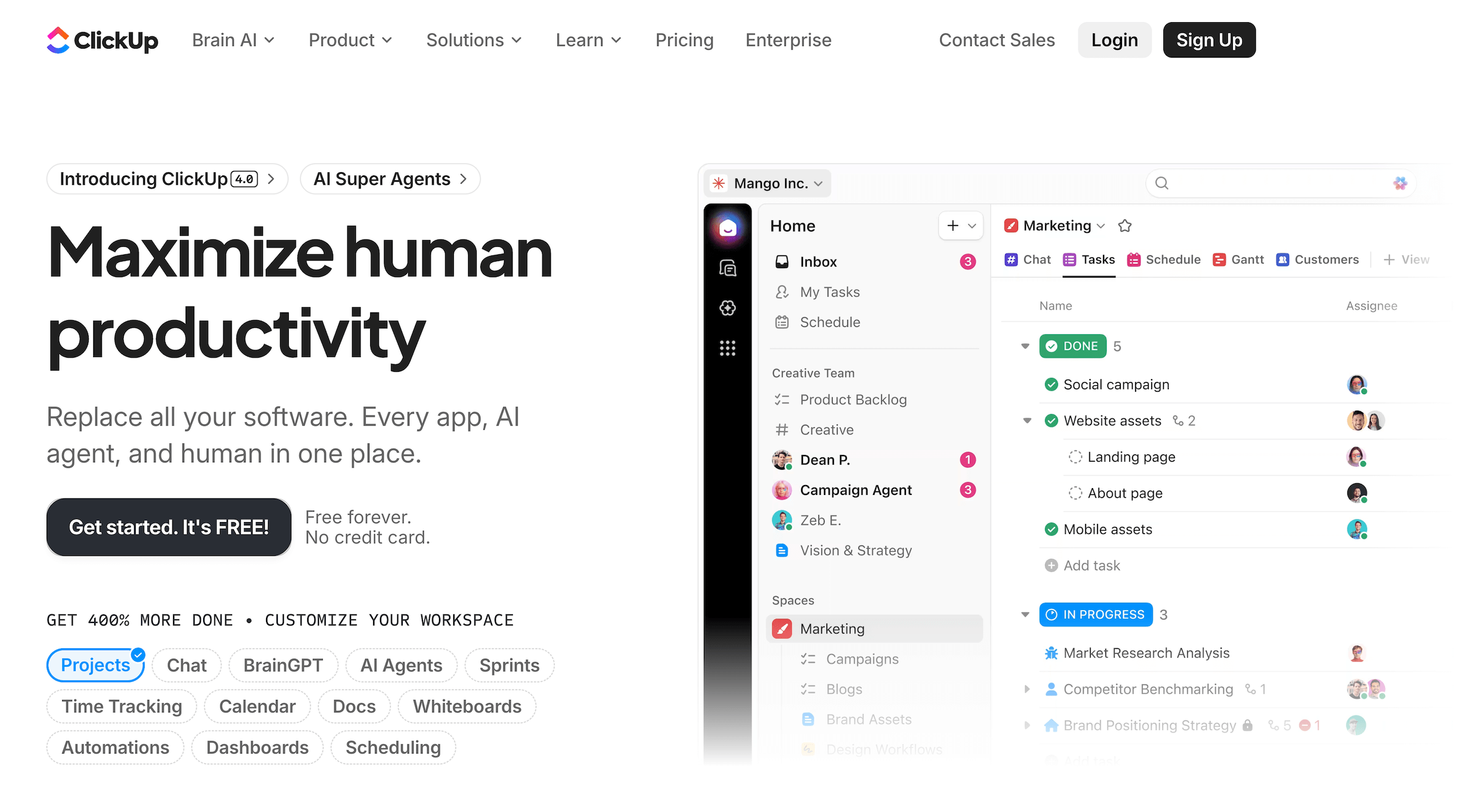
ClickUp is an app-based, universal productivity system that brings together project management, team collaboration, resource planning, workflow automation, and knowledge management under one roof. It offers several native apps to support these workflows, including dedicated ones for time tracking, online forms, calendars, visual whiteboards, and resource scheduling.
As with Monday, users considering this software will need to pay for third-party apps and integrate them with Clickup to support the same workflows as Ravetree — including CRM, financial management, and accounting.
ClickUp does, however, offer templates to support sales workflows and basic CRM needs, but they have serious limitations because they still use ClickUp’s project and task management tools.
For example, spaces and folders can be used for managing contact records, while deals and customers can be represented as tasks. As you’d expect, this isn’t an ideal solution, and users report that it doesn’t scale well.
ClickUp receives high praise for its extensive customizations and flexibility. The tool can be heavily tailored to different workflows, and it includes hundreds of templates to help teams get started. It now also offers an AI assistant — Brain AI — that aims to ease the implementation process and help teams win their time back with productivity agents.
The most common complaints about ClickUp stem from its wide breadth of features — users say the interface can be overwhelming, its learning curve is steep, the app is often slow to load, and the system is buggy.
Overall, teams may consider ClickUp an alternative to Ravetree if they only need project management and time-tracking capabilities. However, as ClickUp lacks native financial management tools — users must rely on integrations to support project expense management and budget tracking. Some teams use workarounds to track expenses and contract information, but there’s no native feature that ties a budget to a project list and tracks cost burn.
Find more ClickUp reviews here.
Features
- Project intake forms
- Project templates
- Task management
- Multiple project views
- Sprint management
- Folders and spaces
- Custom fields
- Chat messages
- Goals & portfolios
- Dashboards
- Mind maps
- Activity views
- Whiteboards
- Native time tracking
- Resource management
- Advanced security
- 1000+ integrations
- Powerful enterprise tools
Pricing
ClickUp offers a generous free plan that supports unlimited users and includes all the core work management features, including task management, different project views, sprint management, basic custom fields, and one web form.
It also offers two standard paid packages:
-
Unlimited ($7/user/month): Offers unlimited storage, folders, and spaces — plus integrations, Gantt charts, custom fields, chat messages, and forms. This tier also includes native time tracking, resource management, and goals & portfolios.
-
Business ($12/user/month): Unlocks unlimited mind maps, activity views, timeline views, whiteboards, sprint points & reporting, workload management, and more.
ClickUp also offers custom enterprise packages (contact them for a quote) that include everything in the Business plan, plus white labelling, team sharing for spaces, custom roles, advanced permissions, and various governance and security controls. Enterprise users also receive a dedicated customer success manager.
Read more: Best ClickUp Alternatives for Agencies & the Creative Industry
10. Asana

Asana is another app-powered project management platform with native time tracking and resource management. It offers over 300 direct integrations across a dozen app categories, ranging from communication and product management to finance and sales.
Asana’s feature set isn’t as extensive as ClickUp’s, but the platform is widely praised for its visual interface, ease of use, and ease of implementation. Small teams in particular love Asana for these reasons — for example, many smaller agencies say their teams found it easy to adopt, and it includes all the must-have features they need to support their daily workflows.
If you’re considering Asana as a Ravetree alternative, it’s important to review its pricing first. While Ravetree offers a single standard plan that includes everything, Asana has locked advanced tools behind higher-tier plans. For example:
-
The Advanced plan — the most expensive standard package — unlocks native time tracking, portfolio workloads, approvals, proofing tools, and integrations with CRM and BI tools.
-
Only custom Enterprise plans include capacity planning tools, project admin controls, and custom branding.
Since capacity planning is limited to the highest tier, only teams on an Enterprise plan can use Asana to replace time tracking, resource management, and project management together.
Features
- Project management
- Project planning tools, like templates & project intake forms
- Project views — organize work as a list, calendar, timeline, Gantt chart, or Kanban board
- Task management & task assignment
- Resource management with capacity planning
- Time tracking
- Inbox
- Guest management
- Goals — set company goals & Asana AI will help tie projects to overall objectives
- Integrations & API
- Automation rules & AI studio
- Reporting dashboard
- Mobile apps (for iOS & Android)
Pricing
Asana offers a free plan for small teams that supports up to 2 users, unlimited tasks, projects, messages, and storage (100MB file limit), time tracking via integrations, status updates, basic search, and list, calendar, and board views. Its paid plans include:
-
Starter ($13.49/user/month): Offers custom project templates, project intake forms, more advanced project monitoring views, and a workflow builder. Teams can add up to 500 users here.
-
Advanced ($30.49/user/month): Unlocks native time tracking, proofing, advanced reporting, and Goals.
Asana also offers two enterprise packages that include resource management, white-labelling, scaled security features, and premium support. However, the vendor doesn’t publicly disclose the pricing for these plans.
Getting Started with Workamajig
Workamajig is a powerful Ravetree alternative that offers deeper financial controls and reporting capabilities. Like Ravetree, Workamajig offers simple packages that include all our core features, instead of locking key capabilities behind confusing pricing tiers.
Our full system replaces standalone project management, resource planning, time tracking, CRM, and accounting software, bringing all your people, processes, and data together in one place.
Request your personalized demo today to simplify your tech stack and streamline your workflows.
Related reads: